
Wacom Cintiq Pro 22
4.2Editor score
4K 120 Hz touchscreen display
Pro Pen 3 with 8192 levels
Customizable ExpressKeys and menus
Photo editing requires precision and control that standard mice simply cannot provide. A high-quality drawing tablet allows you to manipulate pixels with the natural feel of a pen on paper. This guide explores the best options available for professionals and hobbyists alike.
We compared ten top-rated devices based on pressure sensitivity, display quality, and connectivity features. Our analysis includes detailed specifications and user feedback to ensure you find a tool that matches your specific editing needs. Each product was evaluated for its ability to enhance your creative workflow.
Every pick in this list highlights unique strengths and potential trade-offs to consider before buying. You will find options ranging from entry-level pads to professional-grade displays with touch capabilities. Please note that prices and availability can change frequently online.
4.2Editor score

4.3Editor score

4.5Editor score
As an Amazon Associate we earn from qualifying purchases.
The following table provides a side-by-side comparison of all ten products reviewed in this guide. It highlights key specifications such as active area size, pressure sensitivity levels, and connectivity options to help you make an informed decision quickly.



The Wacom Intuos Pro Large stands out as a top choice for serious photo editors seeking professional control. It holds a solid rating from users who value its precision and build quality. The device offers a seamless experience for detailed retouching and creative work.
We may earn a commission when you buy through this link, at no additional cost to you.
Its Pro Pen 3 technology provides 8192 pressure levels and tilt support for natural strokes. The tablet features 10 customizable ExpressKeys and two mechanical dials to speed up your workflow significantly. The 16:9 format is designed to fit modern monitor setups comfortably.
While the price is higher than entry-level models the performance justifies the investment for professionals. The lack of a built-in screen means you must look at your monitor while drawing which takes some adjustment. However the wireless freedom and durability make it a robust office tool.
This tablet is ideal for creative professionals who need reliable hardware for daily editing tasks. The combination of ergonomic design and customizable controls helps you maintain flow during long sessions. We recommend it for anyone ready to upgrade their editing toolkit.
The Pro Pen 3 delivers lag-free tracking and natural pressure sensitivity that mimics real pen on paper.
Customizable ExpressKeys and mechanical dials allow you to access shortcuts without taking your hands off the device.
We may earn a commission when you buy through this link, at no additional cost to you.
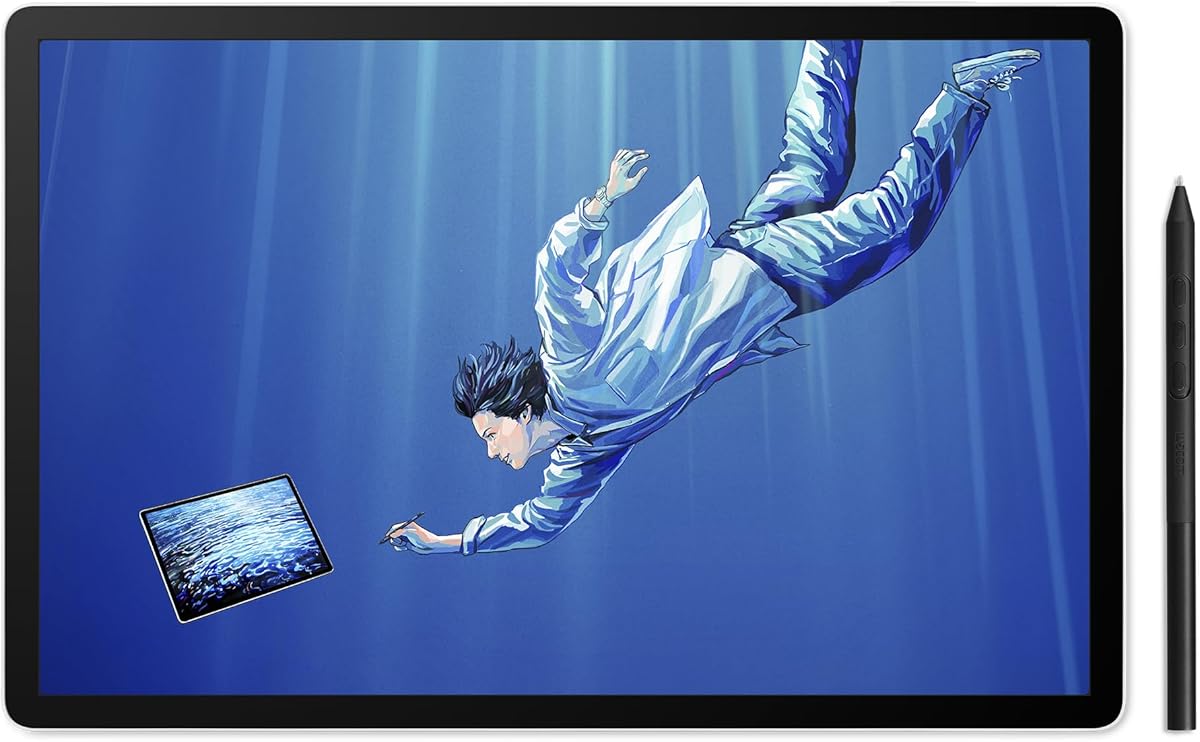
The Wacom Cintiq Pro 22 offers an immersive creative canvas with its Ultra HD 4K display and 120 Hz refresh rate. Users praise its vibrant color and near-zero latency for smooth editing. It is designed for professionals who need the highest visual fidelity.
We may earn a commission when you buy through this link, at no additional cost to you.
The display showcases professional-quality visuals that ensure your edits look accurate on other devices. Pro Pen 3 technology responds to your lightest touch with 8192 pressure levels and 3 side switches. The tablet also features customizable on-screen menus and improved multi-touch gestures.
The investment is significant and may be out of reach for hobbyists or casual users. You will need specific cables like USB-C or Thunderbolt which might require adapters for older computers. However the color accuracy and build quality are top-tier for professional environments.
This device is perfect for creative professionals who demand the best visual experience for their work. It supports Windows and macOS and offers a stable platform for intense editing tasks. Consider it if budget allows and you need a large premium display.
The 4K display with 120 Hz refresh rate provides sharp details and smooth panning for precise editing work.
Adjustable on-screen menus and 8 ExpressKeys let you tailor the interface to your specific software needs.
We may earn a commission when you buy through this link, at no additional cost to you.
The Wacom Intuos Medium provides industry-leading performance at a very accessible price point. It has a strong rating from users who appreciate its wireless freedom and precision. It is a fantastic option for those new to digital photo editing.
We may earn a commission when you buy through this link, at no additional cost to you.
You can connect wirelessly via Bluetooth or directly using a USB-A cable for stability. The battery-free EMR technology feels like pen on paper which helps beginners transition naturally. Registering the tablet gives you access to creative software and online training resources.
The lack of a screen means you must look away from your work to draw on the tablet. This can take practice to master for retouching tasks that require high precision. However the software bundle and price make it a great starting point.
This tablet is recommended for hobbyists or students who want to learn photo editing without a huge cost. It works with all major software and allows you to explore digital creativity easily. We suggest it as the ideal first purchase for beginners.
Connect wirelessly via Bluetooth to work from the sofa or outside without cable clutter on your desk.
Register your tablet to gain access to creative software and Wacom online training to improve your skills.
We may earn a commission when you buy through this link, at no additional cost to you.
The Wacom One HD Creative Pen Display brings digital freedom with a 13.3 inch high definition screen. It allows you to draw directly on the display which simplifies the editing process. Users appreciate its full color spectrum and versatile connectivity.
We may earn a commission when you buy through this link, at no additional cost to you.
The display brings your creative juices to life with a wide color range for accurate edits. The pen features a customizable button for shortcuts like undo or copy paste to keep you immersed. It works with Mac PC and even Chromebook devices for school use.
This is an older generation model so newer technologies might be found in more recent releases. The resolution is HD rather than 4K which may limit detail for professional print work. However it remains a strong entry point into pen displays.
Choose this if you need a second screen or larger canvas without spending a premium amount. It is suitable for creative hobbyists visual thinkers and students needing a portable drawing area. Consider checking newer models if you need higher resolution.
Draw directly on the screen to create a natural feel that improves precision and creative flow.
Works with Mac PC and Chromebook so it fits easily into various school and home setups.
We may earn a commission when you buy through this link, at no additional cost to you.
The Wacom One Medium is an entry-level tablet designed for digital pen starters and visual communication. It offers a pen-on-paper feeling in a compact form factor. Users find it useful for quick edits and basic drawing tasks on the go.
We may earn a commission when you buy through this link, at no additional cost to you.
It connects to Windows PC Mac Chromebook and Android via USB-C with adaptors where needed. The pen features natural tilt recognition and 4096 pressure levels for smooth lines. Shortcut buttons on the pen help you stay immersed in your art.
The active area is smaller than larger models which might limit workspace for complex projects. Some users report lower satisfaction compared to other entries in the lineup. It is a good choice for beginners but power users may want more area.
Consider this tablet if you need a portable device for simple photo edits anywhere. It works with a wide range of devices including smartphones for maximum flexibility. It is a solid choice for casual users who value mobility.
At 9.92 by 7.13 inches this tablet is easy to carry and fits on any desk.
Connect to Windows Mac and Android devices easily with USB-C for maximum versatility.
We may earn a commission when you buy through this link, at no additional cost to you.
The XPPen Deco 01 V3 offers an alternative with high tech IC for smoother lines. It features a 16K stylus that delivers natural shading without batteries. Users praise its large drawing space and lightweight design for daily use.
We may earn a commission when you buy through this link, at no additional cost to you.
You get 16384 pressure levels and 60 degrees of tilt for expressive strokes. The 10×6.25 inch pad helps you break through limits between keys and drawing area. It supports Windows Mac Android Linux and Chrome OS for broad compatibility.
It does not come with Wacom brand reliability but offers great specs for the price. Some users note that mapping on Android might require downloading a specific app for accuracy. However the value proposition is strong for beginners exploring digital art.
Pick this if you want a capable tablet without spending a premium on brand names. It includes extra nibs and a glove to help you start creating immediately. It is ideal for students or hobbyists on a tight budget.
The 16K pressure levels provide smooth transitions for shading and detailed editing work.
Supports Android devices version 10 and above for drawing on your smartphone or tablet.
We may earn a commission when you buy through this link, at no additional cost to you.
The Wacom Movink 13 features a thin OLED display that is ideal for campus or studio use. It weighs less than 1 lb and offers 10-bit color for vivid edits. Users appreciate the touch gestures and shortcuts that streamline navigation.
We may earn a commission when you buy through this link, at no additional cost to you.
The display provides hardware presets for Adobe RGB sRGB and DCI-P3 for accurate color work. Pro Pen 3 includes three side switches and extra nibs stored in the pen. It connects via USB-C and comes with professional software trials to get started.
While portable it is not as versatile for full desktop workflows compared to larger screens. The price point places it in the premium range despite its smaller size. You should check system compatibility as it supports multiple OS options.
Choose this if you need a highly portable screen for on the go editing tasks. It is great for students and freelancers who move between locations frequently. Prioritize it if OLED color and portability are your main concerns.
Hardware presets for major color spaces ensure your edits match the intended look across devices.
At under 1 lb and 6.6 mm thick it is easy to carry in a bag for mobile work.
We may earn a commission when you buy through this link, at no additional cost to you.
The Wacom MovinkPad Pro 14 is a portable all-in-one design powered by Android 15. It delivers professional-grade digital art anywhere without extra equipment using a Snapdragon 8s Gen 3 processor. Users love the 3K OLED resolution and premium texture glass.
We may earn a commission when you buy through this link, at no additional cost to you.
The device comes with 12GB RAM and 256GB storage for smooth performance during memory tasks. ProPen 3 delivers 8192 pressure levels and never needs charging for reliable use. It supports Windows 11 and newer macOS versions for external connections.
You must note that it only works with specific macOS versions and not Intel Macs. The high price makes it a significant investment for a single device. However the power and screen quality are unmatched for a standalone creative tool.
This is ideal for creatives who want a standalone device that does not require a laptop. Consider it if you need heavy multitasking and vibrant visuals in a mobile package. Check compatibility requirements carefully before purchasing for Mac users.
Runs on Android 15 OS with Google Play Store access so you do not need a computer to start.
The 3K OLED screen offers vivid colors and true blacks for professional quality editing on the go.
We may earn a commission when you buy through this link, at no additional cost to you.
The Wacom Intuos Pro Small is ideal for creative professionals needing a compact pad. It features Pro Pen 2 with tilt recognition and virtually lag-free tracking for smooth strokes. The device has a high rating among users for reliability and build.
We may earn a commission when you buy through this link, at no additional cost to you.
Tailor your pad with multi-touch gestures customizable ExpressKeys and a Touch Ring for efficiency. It connects via Bluetooth or USB to Mac or Windows PC seamlessly. The 10.6 inch active area is perfect for desks with limited space.
The Pro Pen 2 is slightly older than Pro Pen 3 which may affect future software features. Some users wish for a larger drawing area for extensive full-body editing projects. However the portability and precision remain strong points for daily use.
Select this if you have limited desk space but still need professional grade controls. It is a great option for illustrators or editors who travel often. Consider the size carefully if you prefer larger hand movements.
The Touch Ring and 6 ExpressKeys let you zoom brush size and navigate menus quickly.
Bluetooth connectivity keeps your desk clutter-free while maintaining a stable connection for work.
We may earn a commission when you buy through this link, at no additional cost to you.
The Wacom Cintiq 16 provides an immersive creative canvas with a 16 inch display. It delivers sharp visuals suitable for digital art and design tasks. Users appreciate the wide color gamut and responsive pen for detailed retouching work.
We may earn a commission when you buy through this link, at no additional cost to you.
The display offers 99% DCI-P3 and 100% sRGB coverage which ensures accurate colors. Pro Pen 3 responds to lightest touch with 8192 pressure levels and includes 3 shortcut keys. Fold-out legs provide a 20-degree working angle for immediate setup.
You will need a display cable for connectivity if your computer lacks specific inputs like USB-C. The screen is not touch-enabled which may limit navigation speed for some users. However the color quality and price balance make it a strong contender.
This is a solid choice for artists and editors needing a dedicated screen without premium costs. It works with both Windows and Mac systems for broad compatibility. Prioritize this if color accuracy and screen size are your main priorities.
99% DCI-P3 coverage ensures your edits will look correct on other media displays.
Fold-out legs allow for a 20-degree working angle right out of the box for comfort.
We may earn a commission when you buy through this link, at no additional cost to you.
Choosing the right tablet involves balancing screen size, pressure sensitivity, and connectivity needs. Here are the key factors to consider for your specific editing workflow.
Non-display tablets require you to look at your monitor while drawing on a separate surface. Display tablets let you draw directly on the screen for a more intuitive experience but cost more.
If you need precise retouching a display is often worth the investment. For general editing a non-display model may suffice to save budget.
Pressure levels determine how well the pen responds to your hand force. Higher levels like 8192 provide smoother gradients and more natural shading.
Look for at least 4096 levels for serious editing. More sensitivity allows finer control over brush opacity and texture.
Battery-free pens like EMR or Pro Pen technologies offer better weight distribution and less charging maintenance. Tilt support is also important for natural shading effects.
Always check if the pen includes customizable buttons or extra nibs. A comfortable grip reduces fatigue during long sessions.
The active area determines how much hand movement is needed for large strokes. Larger areas allow more natural gestures but take up more desk space.
Measure your workspace before choosing. If you work on a laptop a compact size might be more practical.
Wireless options like Bluetooth reduce cable clutter and improve portability. Wired USB connections often provide lower latency and stable power.
Ensure your computer has compatible ports. Some displays require USB-C or Thunderbolt which may need adapters for older devices.
For photo editing color accuracy is critical to ensure edits look consistent on other devices. Look for DCI-P3 or sRGB coverage percentages.
Higher end models often have 99 percent DCI-P3 coverage which is standard for professional print and web work.
Most tablets work with Windows and Mac but some have specific OS requirements. Newer models might require recent software versions for full feature support.
Check your computer system details before buying to avoid driver issues. Android compatibility is an extra feature for mobile workflows.
Some manufacturers include software trials or training which helps beginners get started. This value add can save money initially.
Look for bundles that include photo editing software or online courses. It helps you learn the tool faster.
Always calibrate your tablet using the built-in settings to ensure pen alignment is accurate. This simple step ensures your strokes land exactly where the cursor appears on screen.
Keep your tablet surface clean from dust or debris to maintain pen tip longevity. Regularly replace nibs if they become worn to preserve drawing feel.
Update your drivers regularly through the manufacturer website to ensure stability with new software versions. Proper care extends device life and performance significantly.
While not strictly required a tablet offers precision that a mouse cannot. It allows for natural brush strokes and detailed retouching. If you edit photos often it is a valuable tool for efficiency.
Most of these tablets work with Mac systems but you should check driver compatibility. Some newer models require recent macOS versions. Always verify system requirements before purchasing for your setup.
EMR is a battery-free technology used in standard Intuos models. Pro Pen refers to Wacoms professional line with tilt and advanced features. Both are reliable but Pro Pen offers more sensitivity levels.
Displays allow direct drawing which feels more natural for detailed edits. They are expensive but improve workflow speed. If you edit professionally they are usually a worthy investment.
Many tablets support Android with USB-C connections. You may need to download specific apps for mapping. Check your device OS version for compatibility details.
Most pen models like EMR and Pro Pen do not need batteries. They draw power from the tablet connection. This means no charging cables or dead batteries during use.
The Wacom Intuos Pro Large stands out as the top overall choice for professionals. The Cintiq Pro 22 offers the best premium display experience. For beginners the Intuos Medium provides excellent value.
Prioritize display models if you want intuitive control and color accuracy. Budget friendly options exist for those who do not need direct screen drawing. Choose based on your daily editing needs and workspace.
Prices and availability change frequently so check current listings before buying. We hope this guide helps you find the perfect tool for your creative workflow.