
Canon PIXMA TS4320
4.0Editor score
Affordable all-in-one design
Automatic duplex printing
Energy Star certified
Finding the right printer for your Chromebook can be tricky since not all models play nicely with Chrome OS. You need a device that offers reliable wireless connectivity and straightforward setup without requiring extra drivers or complex configurations. A good Chromebook compatible printer ensures you can print schoolwork, photos, and documents effortlessly from your cloud-based workflow.
We evaluated ten top-rated models based on their compatibility with Chrome OS, print quality, speed, and overall value. Each product was assessed for its ability to connect via Wi-Fi and support mobile printing standards like Mopria and Google Cloud Print. Our goal was to highlight devices that minimize frustration and maximize productivity for students and remote workers alike.
Every pick in this list shows how well the printer integrates with Chromebooks through official app support or native protocol compatibility. We also considered factors like ink efficiency, paper handling, and durability to give you a comprehensive view. Keep in mind that prices and availability can change frequently so checking the latest offers is always a smart move before purchasing.
4.0Editor score
4.0Editor score

4.3Editor score
As an Amazon Associate we earn from qualifying purchases.
This side-by-side comparison highlights the key specifications and capabilities of each printer to help you decide quickly. Look closely at connectivity options, print speeds, and special features like automatic duplexing or document feeding to match your specific needs.


The Canon PIXMA TS3720 stands out as the top choice for Chromebook users due to its explicit support for Chrome OS. With a solid rating from users, this printer handles everyday printing needs reliably while offering essential features like scanning and copying. Its straightforward setup process ensures you can start printing almost immediately after unboxing.
We may earn a commission when you buy through this link, at no additional cost to you.
Key strengths include stable dual-band Wi-Fi connectivity and compatibility with major mobile printing services. The 1.5 inch LCD screen provides enough information to manage tasks without confusion. Users appreciate how easy it is to connect via the Canon PRINT app or native protocols like Mopria for seamless Chromebook integration.
While it lacks automatic duplex printing, the trade-off is acceptable given the budget-friendly price point. The single-sided printing limitation means you handle manual flips for double-sided documents but this is manageable for basic home use. Ink installation is designed to be mess-free which adds to the convenience factor for families.
This printer is ideal for students or remote workers who need a no-fuss solution for schoolwork and documents. Its compact size fits well on small desks while delivering crisp text and decent color prints. For anyone prioritizing Chromebook compatibility over advanced features this model offers the best balance of value and performance.
Direct compatibility ensures you can print without installing extra drivers or relying on complex configurations.
Streamlined installation allows you to connect to your network and start printing within minutes.
We may earn a commission when you buy through this link, at no additional cost to you.
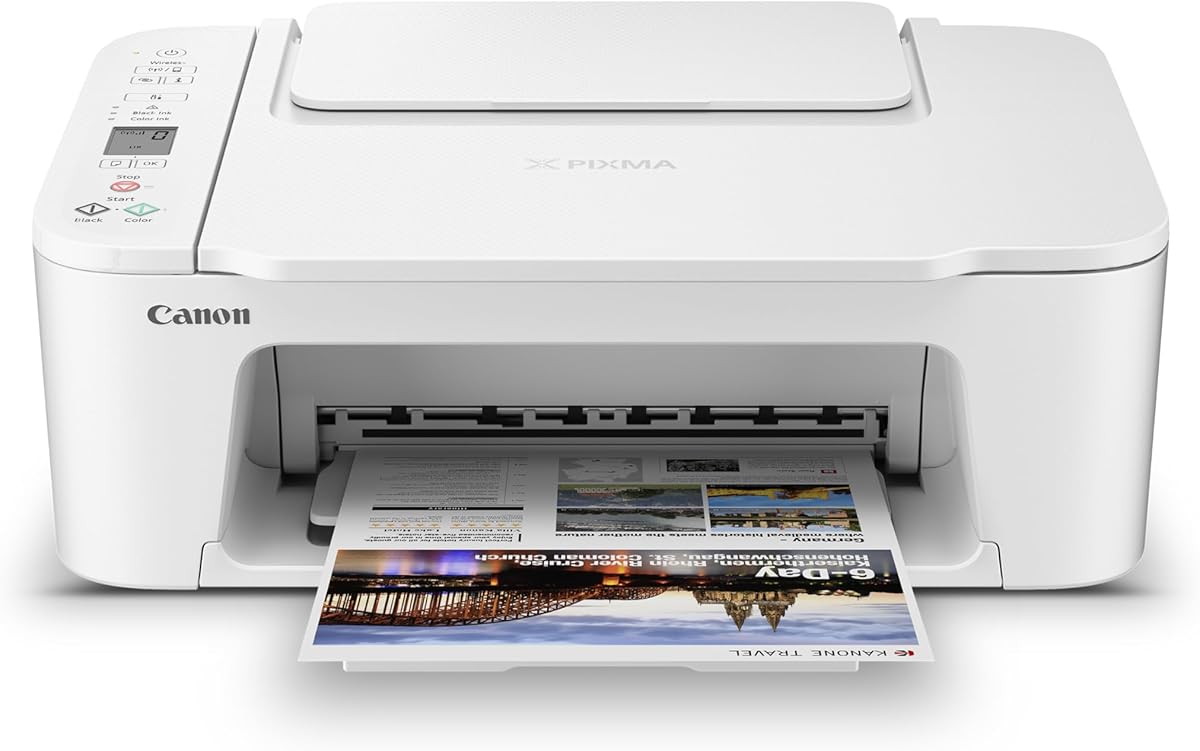
The Canon PIXMA TS4320 offers excellent value for budget-conscious buyers seeking a reliable Chromebook compatible printer. Its hybrid ink system delivers sharp text and vibrant colors suitable for both documents and photos. The automatic duplex feature helps save paper making it a practical choice for everyday printing tasks.
We may earn a commission when you buy through this link, at no additional cost to you.
Connectivity is robust with dual-band Wi-Fi ensuring stable connections in crowded networks. The printer supports mobile printing via the Canon PRINT app and other services allowing flexible access from any device. Environmental certifications like EPEAT Silver and ENERGY STAR make it an eco-friendly option for green-minded users.
Despite lacking a display screen the TS4320 remains user-friendly through its mobile app interface. Print speeds are modest but adequate for light to moderate use at home. The compact design saves space while maintaining full functionality for scanning and copying tasks alongside printing.
This model suits families or students needing cost-effective printing with essential features. Its low operating costs and efficient design make it a smart long-term investment. If you prioritize duplexing and affordability over high speed this printer delivers solid performance for typical home office needs.
Hybrid ink cartridges reduce replacement costs while maintaining quality output for various document types.
Energy Star certification ensures lower power consumption during operation and standby modes.
We may earn a commission when you buy through this link, at no additional cost to you.
The Canon PIXMA TR7120 delivers premium features for users seeking advanced capabilities alongside Chromebook compatibility. Its auto document feeder simplifies multi-page scanning and copying tasks. The OLED display provides clear status updates and intuitive control over settings without needing a phone or tablet.
We may earn a commission when you buy through this link, at no additional cost to you.
Print speeds are notably fast for an inkjet in this category which benefits busy work environments. The hybrid ink system ensures crisp text and vibrant colors for professional documents and photos. Dual-band Wi-Fi guarantees stable connections allowing seamless printing from Chromebooks or mobile devices.
While the price is higher than entry models the added functionality justifies the investment for power users. Automatic duplex reduces paper consumption significantly over time. The compact footprint ensures it fits in home offices without taking up excessive space despite its robust feature set.
This printer is perfect for hybrid workers who need reliable scanning and high-quality output. Its combination of speed convenience and control makes it a standout choice. If you value time-saving features and premium print quality this model is worth the extra cost.
The auto document feeder allows quick scanning and copying of documents without manual page turning.
OLED display offers clear visibility of ink levels and settings for easier management.
We may earn a commission when you buy through this link, at no additional cost to you.
The HP DeskJet 2955 brings AI capabilities to basic home printing making web pages easier to print. Its smart features remove unwanted content ensuring cleaner outputs. This model is designed for simplicity and offers a straightforward wireless experience for Chromebook users.
We may earn a commission when you buy through this link, at no additional cost to you.
Key strengths include a reliable dual-band Wi-Fi connection and intuitive control panel. The Instant Ink trial helps reduce costs by delivering ink automatically before you run out. HP's app allows easy scanning and copying from smartphones which complements Chrome OS workflows well.
Drawbacks include slower print speeds compared to some competitors which might frustrate high-volume users. The design is compact and uses recycled plastics appealing to eco-conscious buyers. However advanced features like auto duplex are missing limiting its efficiency for bulk printing tasks.
Best suited for households with occasional printing needs this printer offers convenience through AI tools. If you want smart formatting and easy management it fits well. Keep in mind subscription costs after the trial period when planning your long-term ink budget.
Intelligent tools optimize web page layouts to prevent wasted paper and awkward text flow.
Constructed with recycled plastics and certified by Energy Star for lower energy use.
We may earn a commission when you buy through this link, at no additional cost to you.
The Canon PIXMA TS6520 combines a stylish OLED display with solid printing performance for home offices. Its hybrid ink system produces vivid colors and sharp text ideal for documents and photos. Automatic duplex helps reduce paper waste while maintaining professional output quality.
We may earn a commission when you buy through this link, at no additional cost to you.
Connectivity is reliable with dual-band Wi-Fi and mobile printing support via AirPrint and Mopria. The compact design fits easily on small desks without compromising functionality. Users appreciate the straightforward setup process allowing quick access to printing tasks from Chromebooks.
While it lacks an auto document feeder the scanner handles single pages effectively. Ink costs may be higher due to the hybrid system but quality justifies the expense. The OLED screen makes checking ink levels and status simple without opening apps.
This printer suits users wanting modern aesthetics and quality prints. Its blend of features makes it versatile for home or hybrid work. If you value display clarity and vibrant output this model offers a balanced option for everyday tasks.
Two cartridges deliver sharp text and rich colors for both documents and photo prints.
Small footprint complements modern spaces while offering full scanning and copying functionality.
We may earn a commission when you buy through this link, at no additional cost to you.
The HP DeskJet 4355 offers an auto document feeder for scanning multi-page docs easily. Its AI tools help optimize layouts ensuring clean prints from emails and web pages. Wireless connectivity makes it accessible for Chromebook users needing quick printing and scanning tasks.
We may earn a commission when you buy through this link, at no additional cost to you.
Strengths include a 35-sheet ADF and Instant Ink trial which reduce manual effort. The HP app allows mobile scanning and copying from your phone. Sustainable design using recycled plastics aligns with environmental goals for modern offices.
Lower ratings suggest some users may experience connectivity issues or slower performance. Color print speeds are modest compared to black-only output. Despite these points the convenience of the ADF and smart features makes it a practical choice for home use.
This printer fits families or students handling varied documents. If you need document scanning and smart formatting this model helps. Monitor connectivity reports and ink subscription terms to maximize its value effectively.
AI tools refine text and images to match your needs precisely without waste.
Scan multi-page documents quickly without manually turning each page one at a time.
We may earn a commission when you buy through this link, at no additional cost to you.
The Canon PIXMA TR4720 stands out with built-in fax capabilities alongside standard printing and scanning. It supports mobile printing and connects to cloud services for seamless document access. The auto document feeder handles multi-page tasks efficiently without manual effort.
We may earn a commission when you buy through this link, at no additional cost to you.
Key features include a 100-sheet paper tray and Alexa support for smart monitoring. Energy Star certification ensures low power consumption during daily use. Cloud connectivity lets you send to print from services like Dropbox or Google Drive easily.
Drawbacks include moderate print speeds and a basic control panel lacking a large display. Ink costs can be high depending on volume. However the fax and ADF combination makes it unique for small offices needing those functions.
Ideal for home offices requiring faxing this printer balances convenience and utility. If you need reliable cloud support and document handling this model fits well. Keep an eye on smart reorder settings to manage ink costs effectively.
Send and receive faxes without extra hardware making it ideal for small office setups.
Alexa integration provides notifications and automatic reordering to prevent running out of ink.
We may earn a commission when you buy through this link, at no additional cost to you.
The Brother Work Smart 1360 offers impressive black print speeds making it a great choice for document-heavy tasks. Its cloud app support allows printing from Drive or OneDrive without needing a computer. The color display simplifies navigation and monitoring of tasks.
We may earn a commission when you buy through this link, at no additional cost to you.
Strengths include a compact footprint and mobile printing via the Brother Connect app. The 20-sheet ADF helps with scanning multi-page documents efficiently. Users value the straightforward wireless connection and easy setup for Chromebooks.
Lack of duplex printing means manual double-sided output which adds time. Scanning resolution is basic for high-quality photos. Yet for text and basic docs the performance is solid for the price point in this category.
Best for small businesses needing speed and cloud access this printer fits well. Prioritize efficiency over premium photo quality if this model is your choice. Check mobile app reviews to ensure it meets your workflow needs before buying.
Up to 16 pages per minute ensures quick output for busy work schedules.
Connect directly to services like Google Drive and Dropbox for seamless document access.
We may earn a commission when you buy through this link, at no additional cost to you.
The HP Envy 6155 features a large touchscreen for intuitive control of print and scan tasks. True-to-screen technology ensures photos look vibrant and match your display. AI tools optimize web layouts reducing wasted paper and enhancing clarity for daily use.
We may earn a commission when you buy through this link, at no additional cost to you.
Key benefits include automatic duplex and robust wireless connectivity. The Instant Ink trial helps manage costs automatically before running out. Its design balances home office needs with enough features for varied document types.
The printer locks out non-HP chips which can limit third-party cartridge choices. Prices are higher than budget models but features justify it for quality seekers. Durability and support are generally positive for home environments.
This printer suits users wanting premium control and color accuracy. If you prioritize screen navigation and photo quality this model fits. Monitor firmware updates and ink policies to avoid surprises with cartridge compatibility.
Print technology matches screen colors for vibrant photos and accurate document output.
Smart tools refine web content for cleaner layouts and efficient paper usage.
We may earn a commission when you buy through this link, at no additional cost to you.
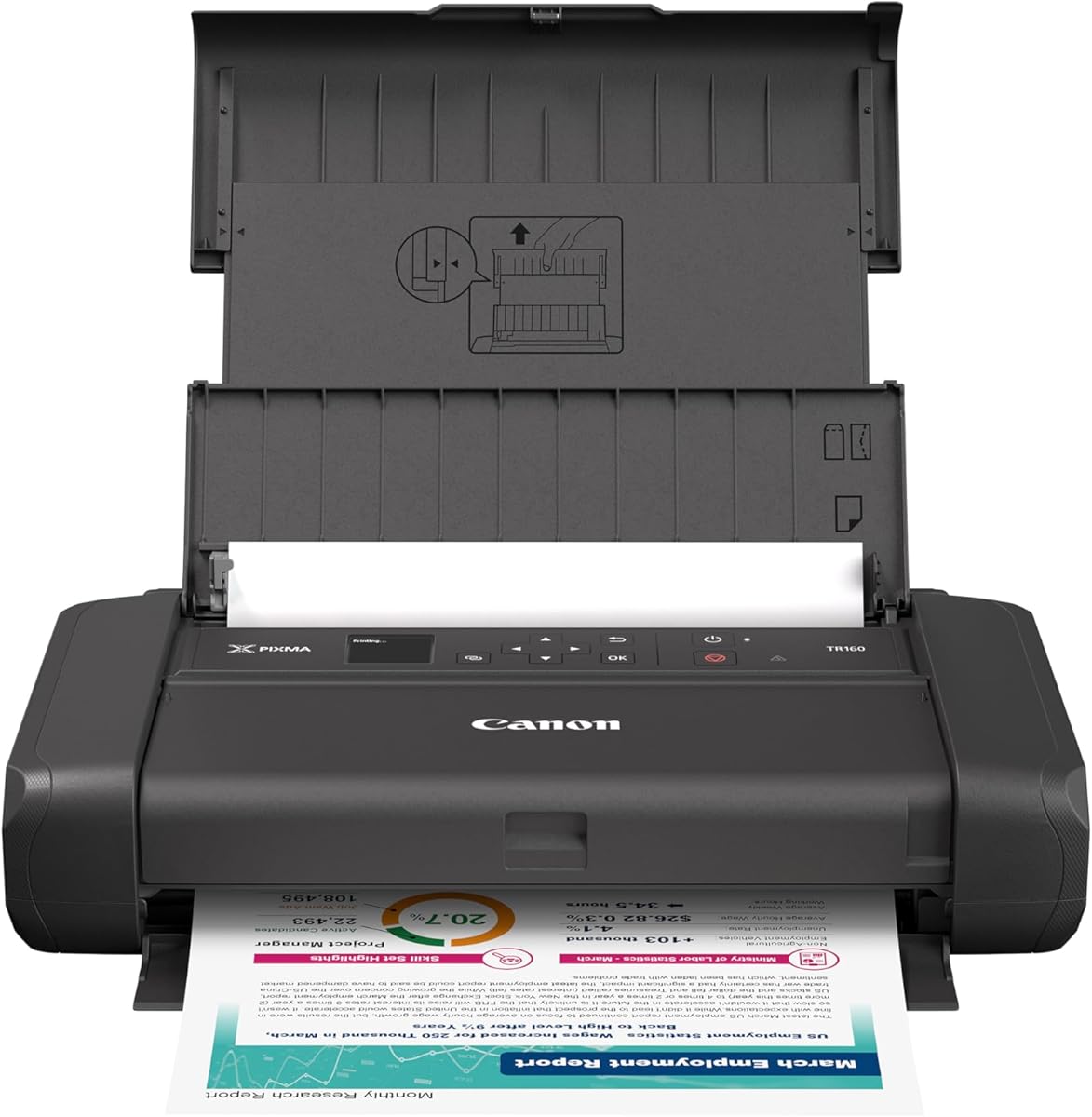
The Canon PIXMA TR160 offers unmatched portability for printing on the go. Its lightweight design fits easily in bags allowing you to print anywhere. With wireless direct mode you can connect without a router making it ideal for travel.
We may earn a commission when you buy through this link, at no additional cost to you.
Strengths include high-quality prints thanks to a 5-color hybrid ink system. The OLED display simplifies settings checking and ink level monitoring. App support ensures Chromebooks and mobiles can print effortlessly without extra setup.
Drawbacks include lack of document feeding and reliance on battery for portability. Not designed for high-volume tasks due to size limits. However for occasional printing away from home this model excels in convenience.
Best for travelers or remote workers needing flexible printing this printer works well. If mobility is a priority this is the top choice. Ensure you charge fully before travel to avoid interruptions.
Easy to carry in backpacks for printing anywhere without heavy bulk or cables.
Connect directly without a router for instant printing wherever you go.
We may earn a commission when you buy through this link, at no additional cost to you.
Selecting the right printer for your Chromebook involves understanding connectivity options and essential features. This guide walks you through critical factors to ensure you choose a device that integrates smoothly with your workflow.
Ensure the printer supports Chrome OS natively or through widely adopted protocols like Mopria or Google Cloud Print. Most modern inkjets list compatibility explicitly which avoids driver headaches.
Check the product description for mentions of Chromebook support to confirm seamless integration before purchasing.
Look for dual-band Wi-Fi to maintain stable connections in crowded networks. USB ports can help initial setup but wireless convenience is essential for Chrome OS workflows.
Prioritize models with both Wi-Fi and mobile app support to ensure flexibility when printing from anywhere.
Consider pages per minute for black and color output to match your workload. Higher speed reduces wait times especially for students or busy professionals.
Evaluate print resolution for text clarity and photo detail since quality varies by model and ink type.
Review input tray capacity to avoid frequent refills during bulk printing. Auto duplex helps save paper by printing two-sided automatically without manual intervention.
Look for trays supporting at least 100 sheets and duplex for regular document workflows to boost efficiency.
Multi-function printers offer scanning and copying which saves space and money. Auto document feeders speed up multi-page scans significantly compared to flatbeds.
Check for mobile scanning apps and direct integration with cloud services like Google Drive for easy access.
Calculate long-term ink costs by checking cartridge yield and price. Some brands offer subscription services that reduce costs but lock you into specific consumables.
Consider printers with high-yield cartridges or tank systems if you print frequently to lower ongoing expenses.
Measure your workspace to ensure the printer fits comfortably without cluttering. Compact designs save desk space but may limit tray capacity or additional features.
Opt for styles that match your office aesthetics while balancing functional size needs and portability options.
Look for smart features like voice assistant integration or touchscreen controls to simplify tasks. Built-in fax or cloud apps add versatility depending on your professional requirements.
Choose models with intuitive displays and mobile apps to streamline daily workflows efficiently and easily.
Start by connecting your printer to the same Wi-Fi network as your Chromebook. Most modern models auto-detect devices so you can simply click the print button and select your device from the list.
Regularly print a test page to keep ink flowing and prevent clogs in the printhead. Clean the exterior with a soft cloth and avoid spraying liquids directly on the unit.
Store spare ink in a cool place and follow manufacturer guidelines for cartridge replacement. Check settings like double-sided printing to optimize your workflow and save resources over time.
Most modern Chromebook compatible printers do not need manual driver installation. They work through Chrome OS native support or cloud print protocols making setup simple and quick for all users.
Yes, manufacturers provide mobile apps for Android and iOS devices to manage print jobs. These apps often support scanning and monitoring ink levels remotely from your phone or tablet easily.
Ensure both devices are on the same Wi-Fi network and restart the printer and Chromebook. If issues persist check for firmware updates or reset network settings on your printer.
Many models include automatic duplex to print two-sided pages without manual flipping. Check the product specs to confirm if your chosen model supports this feature for paper savings.
Use the printer's mobile app or built-in cloud integration to scan files directly to Drive. Many models support direct scanning to cloud services without needing extra software installations.
Yes, several budget-friendly inkjet models offer basic printing and scanning at low costs. These printers are ideal for homework and occasional use without sacrificing essential features.
We reviewed ten standout printers that integrate seamlessly with Chrome OS for home and office needs. Top picks like the Canon TS3720 and TR7120 balance affordability with advanced features for different users.
Prioritize factors like connectivity, speed, and ink costs to match your workload. A model with auto duplex and mobile support can greatly improve efficiency and reduce paper waste daily.
Remember to check current prices and subscription terms before buying since these change often. With the right choice your Chromebook printing experience becomes effortless and reliable.