
Plugable USB-C Triple Monitor Docking Station, 13-in-1, 100W Charging
4.4Editor score
DisplayLink technology support
100W power delivery
Enterprise ready compliance
Finding the right docking station for 3 monitors can transform your productivity and workspace efficiency significantly. Whether you are a creative professional, a financial trader, or a remote worker, having multiple displays allows you to multitask without constant switching. The ideal dock provides stable connectivity, high resolution support, and ample ports for all your peripherals without cluttering your desk.
We have carefully analyzed ten leading products available on the market today to bring you this comprehensive guide. Our selection process focuses on real user ratings, technical specifications, and the ability to handle triple display setups reliably. Each model offers unique strengths, from smart weather displays to enterprise grade power delivery, ensuring there is a fit for every specific need.
In this guide, you will find detailed reviews and comparisons for each of our top picks. We highlight the key features, pros, and cons to help you make an informed decision based on your operating system and workflow requirements. Please note that while we strive for accuracy, product details and availability can change, so always check the latest information before purchasing.
4.4Editor score

4.3Editor score

4.3Editor score
As an Amazon Associate we earn from qualifying purchases.
The following table provides a side by side comparison of all ten products reviewed in this guide. It highlights key specifications such as port types, display capabilities, and power delivery to help you quickly identify the best fit for your setup.


The Selore 17 in 1 docking station stands out as our top pick due to its impressive combination of display versatility and smart features. With a rating of 4.3 stars, it offers a robust solution for Windows users needing triple monitor setups. The inclusion of a smart weather display adds a unique touch that enhances desk utility beyond standard connectivity.
We may earn a commission when you buy through this link, at no additional cost to you.
This docking station supports triple display configurations using various HDMI and DP combinations, allowing for flexible workspace arrangements. Users can connect up to three monitors with high resolution outputs suitable for creative and analytical tasks. The built in weather and time display syncs via Wi-Fi, providing quick access to essential information without disrupting your workflow.
While it excels in functionality, there are minor trade-offs to consider. The device requires a separate power adapter purchase, which might be an extra step for some buyers. Additionally, Mac users will find that this unit supports mirror mode only rather than extended displays, limiting its versatility for Apple ecosystem users.
Ultimately, this is an excellent choice for Windows professionals who want a single cable solution for their entire workstation. The ability to charge at up to 100W ensures your laptop stays powered during intensive tasks. Its privacy lock feature also adds a layer of security for shared workspaces.
The integrated LCD screen provides real-time weather and charging status, enhancing desk utility.
With 10Gbps transfer speeds and 100W charging, it handles demanding workloads efficiently.
We may earn a commission when you buy through this link, at no additional cost to you.
The TobenONE 18 in 1 docking station is designed for users who require extensive connectivity options. It offers a massive 18 ports including nine USB connections, making it ideal for those with numerous peripherals. The triple 4K 60Hz support ensures smooth visual performance for video editing and design tasks.
We may earn a commission when you buy through this link, at no additional cost to you.
This hub transforms your laptop into a powerhouse by consolidating all your connection needs into one unit. The 100W power delivery keeps your laptop charged while you work, eliminating the need for a separate laptop charger at your desk. This level of integration helps maintain a neat and orderly workspace.
However, it is important to note that this device is optimized for Windows and Chrome OS systems. Mac users will not get the same level of multi display support due to system limitations. Also, the power adapter is not included in the box, requiring an additional purchase to utilize full functionality.
Despite these limitations, it remains a strong contender for heavy users who need every port available. The combination of data speeds and video outputs supports complex workflows effectively. It is a reliable choice for those prioritizing port quantity and video quality.
Nine USB ports allow you to connect all your devices without needing additional hubs.
Triple 4K at 60Hz provides crisp visuals for creative and professional work.
We may earn a commission when you buy through this link, at no additional cost to you.
The Plugable 13 in 1 docking station is a premium choice designed with enterprise environments in mind. Its DisplayLink technology enables multi-monitor setups even on Macs which typically have display limitations. This makes it a versatile tool for mixed OS environments within a company.
We may earn a commission when you buy through this link, at no additional cost to you.
This device delivers up to 4K resolution on one monitor and supports extended displays across three screens. It includes comprehensive connectivity options like Ethernet and card readers making it suitable for complex office deployments. The 100W charging ensures your laptop remains fully operational during long work sessions.
One consideration is that it requires driver installation for full functionality on Macs. Additionally, it does not support protected content playback like Netflix due to HDCP limitations. These factors might affect home entertainment use but are less relevant for professional workflows.
Overall, this dock is highly recommended for business users who need reliability and support. Plugable offers lifetime support from their team ensuring any issues are resolved quickly. It is a robust investment for those needing a stable and compliant docking solution.
DisplayLink technology allows expanded displays on Macs that usually support only one external screen.
Compliance with TAA and NDAA standards makes it suitable for government and corporate use.
We may earn a commission when you buy through this link, at no additional cost to you.
This Plugable model is engineered specifically for hybrid teams and enterprise workspaces. It offers robust connectivity with three HDMI ports that work together to provide an extended display experience. The inclusion of DisplayLink technology helps bypass single display limitations on newer Apple Silicon Macs.
We may earn a commission when you buy through this link, at no additional cost to you.
It supports up to three extended displays with varying resolutions to suit different use cases. The 100W power delivery ensures your laptop stays powered throughout the day without needing a separate charger. This setup is ideal for data analysis and conferencing where multiple screens are essential.
Users should be aware that it does not support protected content playback like streaming services. Also, Linux systems are not supported by this device. These limitations make it better suited for office environments rather than media consumption setups.
Despite these constraints, it remains a reliable choice for professional users. The lifetime support from Plugable ensures you have access to expert help if needed. Its design prioritizes stability and productivity for corporate deployments.
Designed for hot-desking and managed workspaces requiring reliable networking and connectivity.
Combines native USB-C video with DisplayLink for maximum screen configuration options.
We may earn a commission when you buy through this link, at no additional cost to you.
The HoDo 8 in 1 docking station offers a cost-effective solution for users needing basic multi-monitor setups. It provides multiple video outputs including HDMI DP and VGA which increases compatibility with older monitors. This versatility makes it a practical choice for budget conscious buyers.
We may earn a commission when you buy through this link, at no additional cost to you.
It supports up to 100W charging which is sufficient for most laptops. The compact design ensures it does not take up much desk space. This dock is ideal for those who need a simple way to connect two or three screens without breaking the bank.
However, the USB ports are limited to USB 2.0 speeds which may slow down data transfer with external drives. Also, Mac users will only get mirror mode functionality. These trade-offs are acceptable given the low price but might not suit power users.
Overall, this is a great entry-level dock for home offices or students. It balances price and functionality well. If you need reliable connectivity without extra frills, this model is a solid option to consider.
Provides essential multi-monitor capabilities at a fraction of the cost of premium models.
Multiple port types allow you to mix and match different monitor technologies easily.
We may earn a commission when you buy through this link, at no additional cost to you.
Acer delivers a polished experience with this 13 in 1 docking station. It stands out by including a 110W power adapter in the box which simplifies the setup process. The aluminum body adds a touch of premium feel and helps dissipate heat effectively during use.
We may earn a commission when you buy through this link, at no additional cost to you.
It supports triple display setups with two HDMI and one DP port providing versatile configuration options. The security slot allows you to lock the dock to your desk which is useful in shared environments. This combination of security and performance makes it appealing for professional settings.
Mac users should note that extended desktop mode is not supported due to system limitations. Also achieving triple 4K output on Windows requires support for Display Stream Compression. These details are important to check before purchasing to ensure compatibility with your setup.
Overall, this is a strong contender for Windows users looking for quality build and included accessories. The comprehensive connectivity ensures your peripherals are covered. It is a reliable choice for enhancing productivity with multiple monitors.
The 110W adapter is included ensuring you have everything needed to start immediately.
An integrated lock slot allows you to secure the dock to your desk physically.
We may earn a commission when you buy through this link, at no additional cost to you.
This Selore model offers a streamlined approach to multi-monitor docking. It features three HDMI ports for straightforward video connectivity without needing to switch between HDMI and DP. The device is plug and play on Windows which simplifies setup for most users.
We may earn a commission when you buy through this link, at no additional cost to you.
It supports triple 4K extended displays on Windows and provides 10Gbps data transfer speeds for quick file access. The dedicated button allows you to switch between mirror and extend modes easily. This ease of use makes it a practical tool for dynamic work environments.
However, Mac users will find that extended displays are not fully supported due to OS constraints. Also, your laptop must support DisplayPort Alt Mode to utilize the triple display feature. Checking these compatibility details beforehand is crucial for a smooth experience.
Despite these platform specifics, it is an excellent hub for Windows laptops. The combination of video and data performance supports a wide range of tasks. It is a reliable choice for those needing a dedicated 3 monitor setup.
One-touch screen control simplifies switching between display modes without software.
10Gbps USB ports ensure fast access to external drives and peripherals.
We may earn a commission when you buy through this link, at no additional cost to you.
The TobenONE DisplayLink dock is engineered for users who need extensive screen real estate. It supports up to four displays depending on your system which is rare for USB-C hubs. The included 120W power adapter ensures sufficient power for the dock and your laptop simultaneously.
We may earn a commission when you buy through this link, at no additional cost to you.
This device utilizes DisplayLink to enable multi-monitor setups on Mac and Windows. It supports triple or quad 4K 60Hz monitors which is ideal for professional workflows like trading or software development. The high speed USB ports facilitate rapid file transfers between devices.
While versatile, it does not support Linux systems and has limitations with streaming services like Netflix. These constraints might impact specific use cases but are minimal for business productivity. It is a powerful tool for those needing high resolution multi-display setups.
Overall, this is a top choice for power users needing maximum display capability. The included adapter and robust connectivity make it a complete solution. If you need more than three screens, this model offers the best value.
Capable of supporting up to four extended monitors on compatible Windows laptops.
120W input allows full power delivery to dock and laptop simultaneously.
We may earn a commission when you buy through this link, at no additional cost to you.
This Plugable model focuses on seamless connectivity for Windows users. It utilizes Multi-Stream Transport to drive up to three displays without requiring additional drivers. This plug and play experience is highly valued by IT departments and home office users alike.
We may earn a commission when you buy through this link, at no additional cost to you.
It offers a mix of video resolutions including dual 4K 60Hz or triple 1080p 60Hz setups. The 2.5GbE Ethernet port provides low latency networking which is beneficial for video conferencing and large file transfers. The 100W charging ensures your laptop stays powered during heavy use.
While it is excellent for Windows it is not recommended for Mac or ARM-based systems. This specialization helps optimize performance for the supported OS but limits versatility for cross-platform users. If you are in a Windows environment, this dock performs reliably.
Overall, this is a robust choice for users who want hassle-free connectivity. The driverless operation saves time and reduces technical overhead. It is a solid investment for productivity focused workflows.
Windows and ChromeOS users can plug and play without installing extra software.
2.5Gbps Ethernet offers faster internet speeds compared to standard Gigabit ports.
We may earn a commission when you buy through this link, at no additional cost to you.
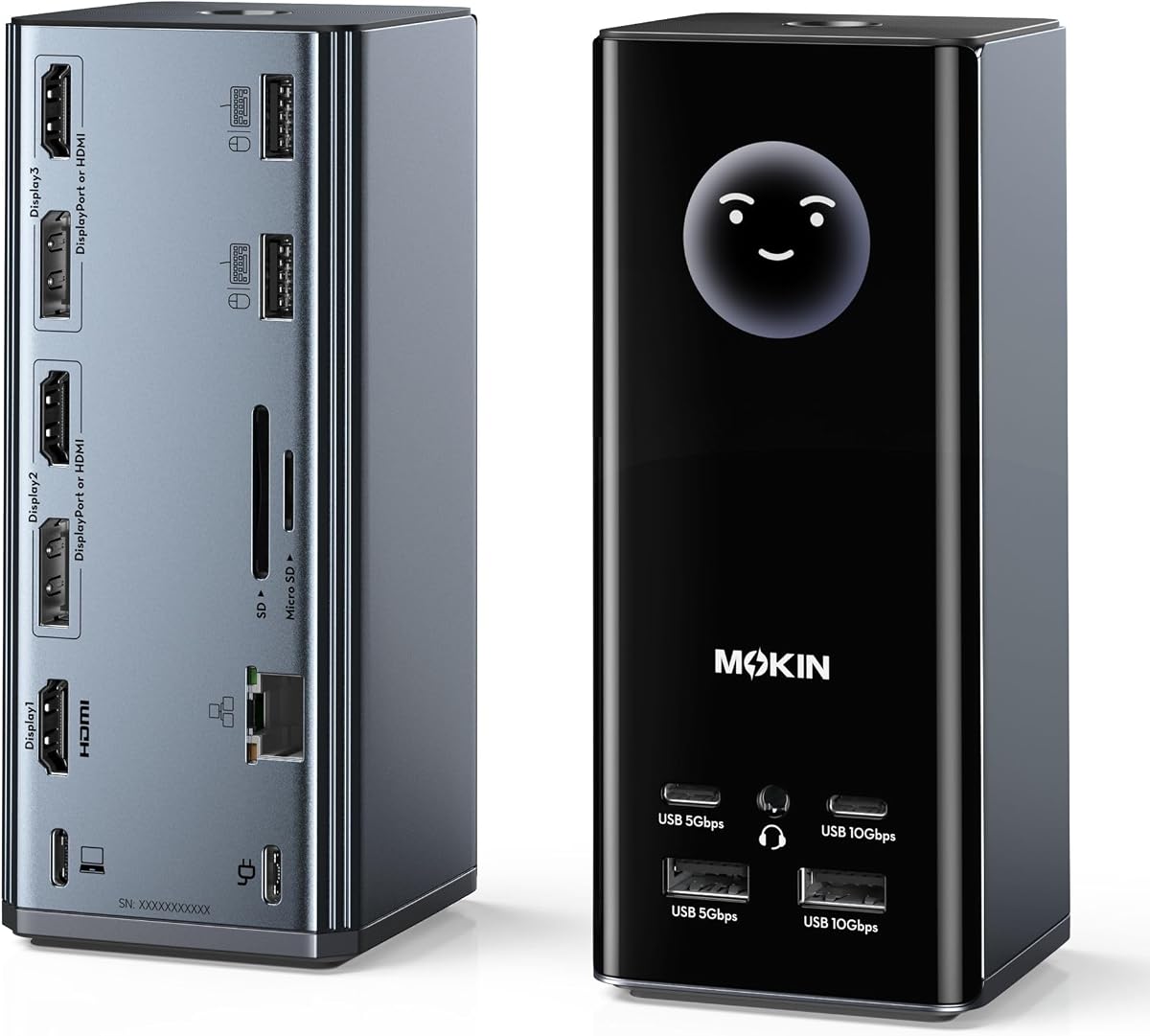
MOKiN offers a unique take on docking stations with its integrated weather display. This feature adds a practical touch to your desk allowing you to check the forecast without looking at your phone. The docking station supports triple displays using a combination of HDMI and DP ports.
We may earn a commission when you buy through this link, at no additional cost to you.
It is designed for high performance with 10Gbps data transfer and 100W power delivery. The privacy lock button instantly turns off external screens which is useful for securing your data in public spaces. These smart features distinguish it from standard connectivity hubs.
Users should note that firmware updates may be required to modify display settings. Also, Mac users will only get mirror mode similar to other models in this list. These points are worth considering based on your specific workflow needs.
Overall, this is an appealing choice for those who value desk aesthetics and smart features. The combination of video power and utility makes it a well-rounded option. It is a great pick for home offices looking for a modern dock.
Real-time LCD screen shows charging status and port connection for instant monitoring.
Double-tap button locks screens quickly ensuring sensitive data remains private.
We may earn a commission when you buy through this link, at no additional cost to you.
Selecting the right docking station involves considering several technical factors to ensure it meets your specific display and connectivity needs. This section breaks down the key aspects to look for.
Different docking stations support different operating systems. While many offer triple displays on Windows using Multi-Stream Transport Mac users often face limitations due to system architecture. It is crucial to check if the dock supports your specific OS before purchasing to avoid compatibility issues.
Always verify the dock's supported OS list and driver requirements to ensure smooth operation.
Check the number and type of video ports available. HDMI and DisplayPort are common standards but the resolution support such as 4K 60Hz or 1080p may vary. Ensure the dock can support the resolution and refresh rate required by your monitors for optimal performance.
Look for models that support the specific display resolution you need to avoid flickering or slow performance.
Many docking stations support Power Delivery to charge your laptop through the same cable. A higher wattage such as 100W is recommended for powering laptops while driving multiple displays. Without sufficient power you may need to keep your laptop charger connected.
Choose a dock with wattage that matches or exceeds your laptop's power requirements.
Beyond video outputs consider the number of USB ports and their transfer speeds. USB 3.0 or 3.1 ports offer faster data transfer which is essential for external drives. Additional ports like Ethernet and SD card readers add versatility to your workspace setup.
Ensure the dock has enough ports for all your peripherals to avoid needing extra hubs.
The physical build of the dock can impact its durability and heat dissipation. Aluminum enclosures generally offer better cooling than plastic. Also check if the dock can be placed vertically or horizontally to suit your desk layout and space constraints.
A well-built dock will perform better over time and fit neatly into your workspace.
Some docks require driver installation to enable all features especially for multi-monitor setups on Macs. Others are plug and play. Driverless options simplify setup but may limit functionality on certain systems. Consider your technical comfort level when choosing.
Prioritize driverless options if you prefer a simpler setup without software installation.
For public or shared spaces consider docks with security slots or privacy buttons. These features allow you to lock the dock or turn off displays quickly. Also check if power adapters are included in the box to avoid additional costs.
Look for docks that include necessary cables and adapters to save money and hassle.
Prices vary widely based on features and brand. While budget options are available ensure they meet basic video and power needs. A solid warranty and support can be a valuable investment in case of technical issues.
Investing in a reputable brand often ensures better support and reliability long term.
To start using your docking station connect the power adapter to the dock first then link your monitors and peripherals. Once everything is connected plug the USB-C cable into your laptop. The system should recognize the new displays automatically if using Windows or with drivers if on a Mac.
Keep the dock in a well ventilated area to prevent overheating during extended use. Dust can accumulate in ports over time so use a soft brush or compressed air to clean it occasionally. This maintenance ensures stable data transfer and connectivity.
If you experience display issues check your cable connections and restart your laptop. Ensure your laptop's USB-C port supports video output as some ports are data only. Updating your laptop's graphics drivers can also resolve compatibility problems with newer docks.
Not all laptops support triple displays via a single USB-C port. You need a laptop with a full-featured USB-C or Thunderbolt port that supports video output. Check your laptop's specifications for DisplayPort Alt Mode or Thunderbolt 3 or 4 support before buying a dock.
Most docking stations are limited to two external displays on Macs due to hardware constraints. However some docks using DisplayLink technology can enable additional displays. You may need to install drivers and accept that performance might differ from native setups.
Many docks do not include a power adapter so you should check the product details. Using the recommended adapter ensures the dock powers all connected devices and charges your laptop. Without it you might experience performance drops or charging issues.
The resolution depends on the dock and your laptop's capabilities. Some docks support triple 4K but at lower refresh rates like 30Hz. Others support one 4K and two 1080p at 60Hz. Always verify the specific resolution limits in the product specs.
In general a good docking station should not slow down your laptop significantly. However if you connect too many high-power devices or run intensive tasks you might notice changes. Ensure your laptop's port can handle the bandwidth required by the dock.
On Windows you can change display settings in the system settings to extend or mirror your screens. On Mac the settings are similar but limited by OS support. Some docks also offer physical buttons to switch modes quickly.
Most docks prioritize productivity over gaming which often requires high refresh rates and low latency. However some models support 4K 60Hz which is suitable for casual gaming. Check for low latency modes and fast USB ports to enhance performance.
Typically you should use one dock per laptop to avoid power and connection issues. Using multiple docks can cause conflicts in video signal routing. If you need more ports consider a dock with higher connectivity instead.
Choosing the right docking station for 3 monitors depends on your operating system budget and connectivity needs. Our top picks offer a range of options from budget friendly hubs to premium enterprise solutions. Each model provides unique features to enhance your workspace productivity and comfort.
Prioritize compatibility with your laptop's ports and check for required drivers before purchasing. Also consider the power delivery and display resolution to ensure the dock meets your workflow demands. A well chosen dock can significantly improve your multitasking efficiency.
We recommend checking the current prices and availability before finalizing your purchase as these details can change. Investing in a reliable docking station is a smart step toward a more organized and productive workspace. We hope this guide helps you find the perfect match for your setup.