
Anker Prime Docking Station
4.3Editor score
14-in-1 connectivity
160W total output
10Gbps data speeds
Compare top docking stations for Dell laptops. Real ratings, detailed specs, and expert picks for dual monitors, fast charging, and productivity.
Finding the right docking station for your Dell laptop transforms a portable device into a full desktop workstation. It connects multiple monitors, peripherals, and charging sources through a single cable for a clean setup.
We evaluated ten highly rated models based on port selection, power delivery, display support, and build quality. Each option serves different needs, from budget-friendly hubs to premium docks with advanced management features.
Every pick includes detailed specifications, real user ratings, and honest pros and cons. Prices and availability may change, so verify the latest details before purchasing to ensure the best fit for your workflow.
4.3Editor score

4.5Editor score

4.5Editor score
This table offers a side-by-side view of all ten models, highlighting key specifications like port count, video output, and power delivery to help you compare them quickly.




The Dell Pro Laptop Docking Station WD25 is a premium solution designed for modern workspaces. It holds a 4.5 rating and excels in compatibility and power delivery, offering up to 100W to charge laptops while connected.
We may earn a commission when you buy through this link, at no additional cost to you.
Its standout quality is support for up to four high-resolution displays, making it ideal for multitaskers. It also features an ambidextrous cable for flexible routing and is built with significant recycled materials for sustainability.
Trade-offs include a higher price point compared to generic hubs. However, the enhanced durability and IT management capabilities justify the cost for users seeking reliable performance.
This dock is best for Dell AI PC users who need high power and multi-monitor setups. It delivers seamless connectivity and sustainability for professional environments.
Delivers up to 100W to charge demanding laptops even while running multiple displays and peripherals simultaneously.
Built with at least 65% post-consumer recycled materials and packaged with 100% recycled materials to reduce environmental impact.
We may earn a commission when you buy through this link, at no additional cost to you.
This Anker model is a top budget choice with a 4.5 rating. It offers massive expansion through an 8-in-1 design, including dual HDMI ports for 4K video and reliable data transfer options.
We may earn a commission when you buy through this link, at no additional cost to you.
Its strengths include support for 4K@60Hz on one display and up to 85W pass-through charging. It is compatible with many laptops featuring DP Alt Mode and offers a solid 18-month warranty.
A limitation is that macOS only mirrors displays on both HDMI ports. Also, you need a separate 100W charger to maximize its charging capabilities.
It suits users needing dual monitors and charging without high costs. It provides essential ports and reliable performance for daily work.
Expands one USB-C port into HDMI, Ethernet, SD card, and USB-A ports for all your essential peripherals.
Backed by Anker's worry-free 18-month warranty and friendly customer service for peace of mind.
We may earn a commission when you buy through this link, at no additional cost to you.
The Anker Prime Docking Station is a powerhouse with a 4.3 rating. It features 14 ports and 160W total output, allowing you to charge up to four devices simultaneously while managing high-speed data.
We may earn a commission when you buy through this link, at no additional cost to you.
Key strengths include 10Gbps data transfer speeds and dual 4K display support at 60Hz. It is perfect for power users who need to connect multiple high-performance peripherals.
Trade-offs involve incompatibility with 5K monitors and limited macOS support. However, these are minor issues for most Windows users.
It is the best choice for demanding workloads requiring extensive connectivity. It balances performance and reliability for professional needs.
Delivers a powerful 160W total output to charge multiple devices simultaneously without compromising performance.
Features versatile ports offering speeds up to 10Gbps for quick file transfers and efficient workflow.
We may earn a commission when you buy through this link, at no additional cost to you.
This affordable dock supports up to three monitors and has a 4.3 rating. It provides 4K HDMI, DisplayPort, and VGA outputs, making it versatile for diverse setups.
We may earn a commission when you buy through this link, at no additional cost to you.
Its strengths include 100W USB-C charging and extensive compatibility with various brands. It works well for users needing legacy VGA ports alongside modern HDMI.
The trade-off is the use of USB 2.0 ports for data, which are slower. Additionally, resolution settings require careful configuration for triple displays.
Ideal for users needing multiple displays at a low cost. It delivers essential connectivity for mixed environments.
Supports triple display outputs via HDMI, DP, and VGA for expanded workspace on compatible laptops.
Supports up to 100W input for efficient charging while connected to multiple peripherals.
We may earn a commission when you buy through this link, at no additional cost to you.
The Anker Nano offers a unique 13-in-1 desktop dock with a detachable 6-in-1 hub. It holds a 4.2 rating and suits both office desks and travel needs.
We may earn a commission when you buy through this link, at no additional cost to you.
Key strengths include triple monitor support via HDMI and DisplayPort and fast 10Gbps data transfer. It replaces two devices, saving money and desk space.
A limitation is that macOS only mirrors external displays. Also, the detachable hub needs the main dock connection to function.
Best for users needing a portable and desktop solution. It combines flexibility with robust connectivity.
Features a detachable 6-in-1 portable hub that snaps off for on-the-go use without buying separate devices.
Supports up to 3 monitors with flexible setups for traders, analysts, and content creators.
We may earn a commission when you buy through this link, at no additional cost to you.
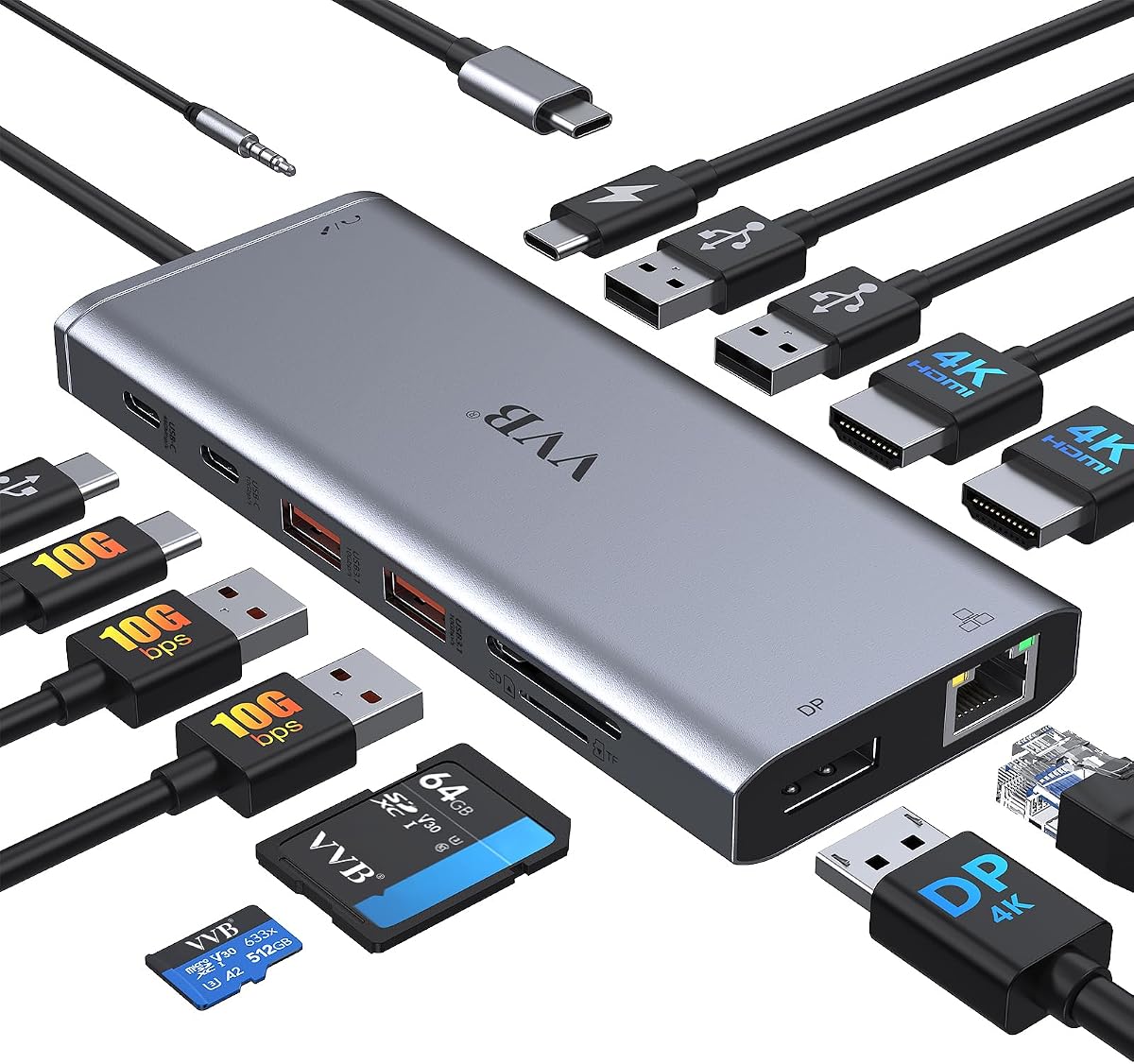
This 14-in-1 dock is designed for extensive connectivity. With a 4.3 rating, it supports triple displays and fast 10Gbps data transfer, making it suitable for power users.
We may earn a commission when you buy through this link, at no additional cost to you.
Its strengths include high-definition 4K output on single monitors and Gigabit Ethernet. It supports various laptop models like Dell and HP.
Trade-offs include a complex setup for triple displays and mixed USB speeds. These are minor for most home office needs.
Suits users needing many ports and multiple screens. It offers a complete workstation in a single device.
Supports ultra high-definition 4K dual monitor output and triple displays for enhanced productivity.
Equipped with USB-C and USB-A ports for 10Gbps data transfers of large files in seconds.
We may earn a commission when you buy through this link, at no additional cost to you.
The Dell WD19S is a proven docking station with a 3.8 rating. It offers robust 130W Power Delivery and supports dual DisplayPort plus HDMI for multiple screens.
We may earn a commission when you buy through this link, at no additional cost to you.
Its strengths are its strong power output and reliability for Dell laptops. It includes multiple USB ports and is built for stable performance.
Trade-offs include a lower user rating compared to newer models and a bulkier footprint. However, it remains a solid option for existing users.
Ideal for Dell users needing reliable power and dual screens. It provides steady performance for workloads.
Built to power connections efficiently with 130W delivery and optimized display outputs.
Designed to optimize your workspace by connecting multiple devices through a single cable.
We may earn a commission when you buy through this link, at no additional cost to you.
This 13-in-1 Anker model supports triple displays and has a 4.0 rating. It features a compact vertical design that saves desk space while offering extensive connectivity.
We may earn a commission when you buy through this link, at no additional cost to you.
Its strengths include 10Gbps data transfer and 85W host charging. It works well with Windows for extended displays.
Trade-offs involve macOS limitations that only allow mirrored displays. Also, it requires Windows for true extended multi-monitor setups.
Suits Windows users needing a space-saving dock. It provides essential ports and reliable performance.
Compact vertical design saves desk space while offering 13 ports for all your peripherals.
Run up to 3 external monitors at 1080p for expanded multitasking.
We may earn a commission when you buy through this link, at no additional cost to you.
The Dell WD19 provides a stable docking experience with a 4.0 rating. It includes 90W Power Delivery and supports dual DisplayPort and HDMI connections for flexible setups.
We may earn a commission when you buy through this link, at no additional cost to you.
Its strengths are its Dell-native compatibility and reliable Gigabit Ethernet. It also includes combo audio ports for headsets.
Trade-offs include lower power compared to newer models and a bulky design. However, it remains a trusted choice for business use.
Ideal for users seeking steady performance on Dell laptops. It offers essential connectivity and reliability.
Built to provide reliable performance and optimized connection for Dell workstations.
Includes multiple USB 3.1 ports for connecting various accessories and peripherals.
We may earn a commission when you buy through this link, at no additional cost to you.
This renewed WD19 dock offers excellent value with a 4.1 rating. It comes with an 180W adapter and supports dual displays through HDMI and DisplayPort connections.
We may earn a commission when you buy through this link, at no additional cost to you.
Its strengths include broad compatibility with various Dell series and verified refurbished quality. It is a cost-effective choice for budget-conscious buyers.
Trade-offs involve potential renewed concerns and possible firmware updates. However, it provides strong performance for its price.
Best for users needing Dell native support without high costs. It delivers reliable connectivity for daily tasks.
Effortlessly connect your peripherals and monitors with a dock designed for broad compatibility.
Certified renewed product that provides original features at a more affordable price.
We may earn a commission when you buy through this link, at no additional cost to you.
Selecting the right docking station requires evaluating key factors to ensure seamless integration with your Dell laptop.
First, list all the peripherals you need to connect, such as monitors, keyboards, mice, and external drives. Count the exact number of ports required to avoid purchasing an underpowered hub.
Ensure the dock includes enough HDMI or DisplayPort outputs, USB-A and USB-C slots, and Ethernet connectivity for your daily tasks.
Check your Dell laptop's power requirements and compare them to the dock's wattage output. Higher performance models often need 100W to charge fully while connected to multiple devices.
Look for docks that support Power Delivery (PD) with sufficient wattage to keep your laptop running without needing an extra charger.
Decide how many monitors you want to use and their desired resolution. Some docks support up to three or four displays, while others are limited to dual setups.
Verify that the dock supports your desired refresh rates, such as 4K at 60Hz, and confirm your laptop supports MST for extended displays.
For fast file transfers, look for USB-C or USB-A ports that support speeds up to 10Gbps. This is essential for external hard drives and high-speed storage.
Avoid docks that only offer 480Mbps USB 2.0 speeds if you need to move large files regularly.
Consider the physical layout of the dock and its cable options. Some docks include ambidextrous cables for flexible routing, while others have fixed layouts.
Choose a model with a compact design and manageable cables to keep your workspace organized and clutter-free.
Ensure the dock is fully compatible with your operating system. While most support Windows well, macOS users should check for mirror-mode limitations.
Read product details carefully to confirm your laptop model works seamlessly with the dock's video and data protocols.
Invest in a dock with robust build quality to ensure durability and long-term reliability. Premium models often use reinforced connectors and better materials.
Look for manufacturers that offer substantial warranties, such as 18 months, to protect your investment against defects.
Balance your needs with your budget. Basic hubs cost less but may lack high-wattage charging or multi-display support.
Higher-priced docks often offer better stability, more ports, and reliable performance, providing better long-term value.
To set up, plug the dock into a stable power source and connect your Dell laptop using the provided USB-C cable. Attach monitors and peripherals to the appropriate ports on the dock.
For optimal performance, ensure all cables are firmly seated to prevent disconnections. Regularly check ports for dust and debris to maintain good connectivity.
When not in use, disconnect the USB-C cable to prevent unnecessary wear. Store the dock in a dry, cool place away from direct sunlight or moisture.
No, not every USB-C port supports video output. Your laptop must have a USB-C port with DisplayPort Alt Mode or Thunderbolt capability to connect to a docking station for monitors.
Power Delivery (PD) allows the dock to supply power to your laptop through the USB-C cable. This means you only need one cable to charge your laptop and connect to peripherals.
Most docking stations support dual monitors, but some high-end models support up to four. Check the dock's specifications to confirm how many displays it can drive.
While many docks work with macOS for data and charging, video output is often limited to mirrored mode on both external monitors. Always check compatibility notes for your laptop model.
Many docks include a power adapter, but some rely on your laptop's USB-C charging. Always verify if the dock comes with its own adapter to ensure stable performance.
Visit the manufacturer's website to download the latest firmware updates. Follow the instructions to update the dock via your laptop to fix compatibility issues.
In that case, the docking station is essential. It expands that single port into multiple connections for monitors, USB devices, and network access.
Docking stations are designed for productivity rather than gaming. They may not support the high refresh rates needed for competitive gaming but work fine for general use.
These ten models offer diverse options from budget-friendly hubs to powerful premium docks. The Dell Pro WD25 and Anker Prime stand out for their high power and extensive connectivity.
Prioritize the number of ports and charging wattage to match your laptop and peripherals. Ensure your laptop supports DP Alt Mode to avoid compatibility issues.
Prices and availability change regularly, so verify current details before buying. Choose a dock that supports your workflow needs for years of reliable use.