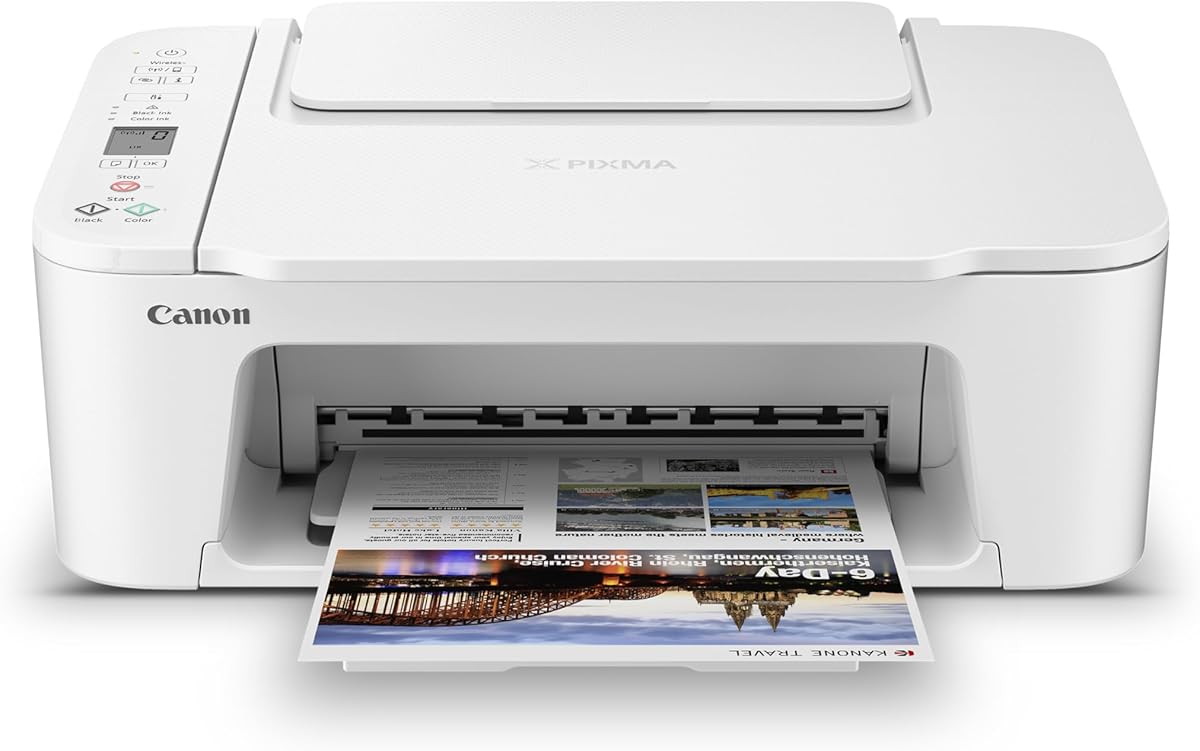
Canon PIXMA TS3720
4.0Editor score
Simple 1.5-inch LCD screen
Easy wireless setup process
Compact home friendly design
Finding a printer that is simple to operate can be a challenge for many older adults. This guide highlights models designed with intuitive interfaces, clear screens, and straightforward connectivity to reduce frustration and keep you connected.
We evaluated each device based on ease of setup, clarity of controls, and reliability of wireless connections. Our goal is to highlight units that minimize technical hurdles and focus on delivering clear, high-quality prints without unnecessary complexity.
Each pick includes real user ratings and detailed features to help you make an informed choice. Prices and availability can change over time, so please check the current listing on Amazon before purchasing your new device.
4.0Editor score

4.2Editor score

4.3Editor score
As an Amazon Associate we earn from qualifying purchases.
This side by side comparison highlights the key specifications and features of every model included in our list. We focus on usability factors like screen type, connection options, and maintenance needs to help you find the perfect fit for your home office.




This printer stands out as an excellent choice for seniors needing reliable and simple printing. Its OLED display provides clear visual feedback on status and ink levels without straining the eyes.
We may earn a commission when you buy through this link, at no additional cost to you.
The setup process is straightforward, allowing users to connect quickly via mobile apps or dual-band Wi-Fi. Printing documents and photos from a smartphone or tablet is seamless with AirPrint support.
While the paper tray capacity is modest, the automatic duplex printing helps save paper and costs over time. The compact design ensures it fits well on most desktops without taking up too much space.
We recommend this model for seniors who prioritize screen clarity and wireless ease. It balances performance and usability effectively for everyday home printing needs.
The 1.42-inch OLED screen displays ink levels and printer status clearly, making it easy to monitor without needing to check a phone.
Connect via the Canon PRINT App or AirPrint to print directly from smartphones, reducing the need for complex computer setups.
We may earn a commission when you buy through this link, at no additional cost to you.
This premium model offers advanced features like an auto document feeder and intuitive OLED display, perfect for seniors managing multi-page documents. It combines sleek design with practical functionality for versatile home use.
We may earn a commission when you buy through this link, at no additional cost to you.
The OLED screen allows for easy navigation of settings and ink levels, ensuring that users can manage their device with minimal confusion. Scanning multiple pages becomes simple with the built-in feeder.
Users will appreciate the high-quality prints that vividly reproduce text and images. The compact form factor ensures it blends into home offices without overwhelming the available space.
We suggest this option for those who value efficiency and screen clarity. It offers a robust set of features while maintaining a user-friendly interface suitable for varied printing tasks.
Scan or copy multiple pages at once with the feeder, saving time and effort compared to manual single-page scanning.
The OLED panel provides sharp visuals and clear status updates, making navigation intuitive for users of all technical levels.
We may earn a commission when you buy through this link, at no additional cost to you.
This budget printer delivers essential printing, copying, and scanning functions in a simple package designed for everyday use. It is an excellent choice for seniors who need basic capabilities without extra complexity.
We may earn a commission when you buy through this link, at no additional cost to you.
The setup process is streamlined, allowing users to get connected within minutes using the Wi-Fi options provided. The 1.5-inch LCD screen is straightforward and displays necessary information clearly.
While it lacks advanced features like automatic double-sided printing, it fulfills basic document needs effectively. The compact design ensures it fits well in smaller spaces like home offices or living areas.
We recommend this model for those seeking affordability and simplicity. It provides reliable performance for occasional printing without a hefty investment or complicated maintenance requirements.
The printer can be set up and ready to use in just a few minutes, reducing the initial learning curve significantly.
It works seamlessly with Chromebooks and mobile devices, allowing for versatile printing without needing a traditional desktop or laptop.
We may earn a commission when you buy through this link, at no additional cost to you.
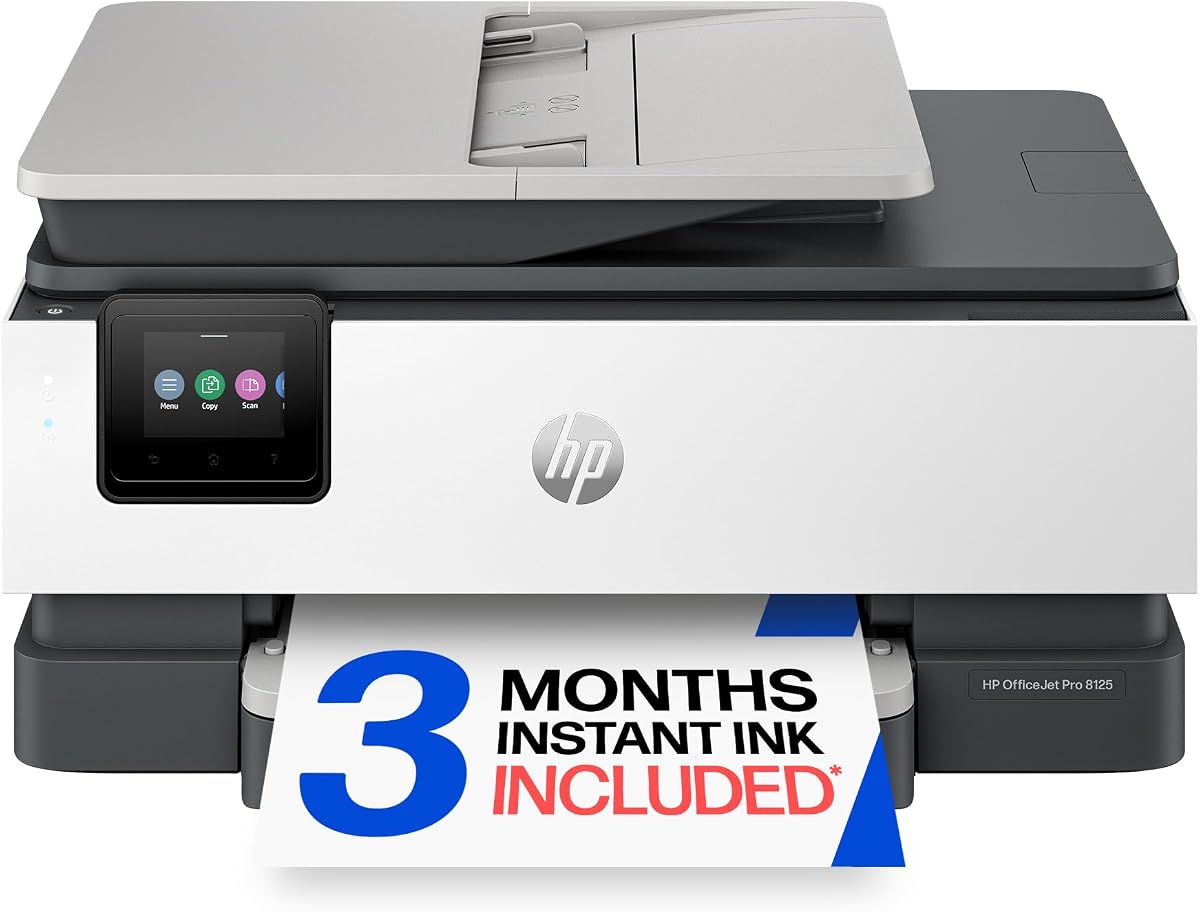
This printer is designed for basic home printing needs, offering essential scanning and copying functions in a compact unit. It is particularly suitable for seniors who require minimal features and straightforward operation.
We may earn a commission when you buy through this link, at no additional cost to you.
The included trial of Instant Ink helps reduce initial costs and simplifies supply management. Wireless setup is reliable, allowing connection from various devices via the HP Smart app.
While the print speed is moderate, it is sufficient for casual document generation and recipe printing. The compact design ensures it does not clutter the workspace or interfere with other items.
We suggest this model for users who need a reliable basic printer. It is an accessible option that combines simplicity with modern wireless connectivity for everyday tasks.
The three-month trial provides convenient ink delivery, helping users avoid running out of supplies during normal home use.
Use the mobile app to scan, copy, or print directly from your phone, streamlining common tasks without opening a computer.
We may earn a commission when you buy through this link, at no additional cost to you.
This printer offers robust features like a color display and cloud integration, making it versatile for modern home offices. It supports multiple apps and provides a user-friendly interface for managing prints.
We may earn a commission when you buy through this link, at no additional cost to you.
The automatic document feeder allows scanning of multi-page documents without manual intervention. This feature is valuable for seniors handling larger batches of paperwork or records regularly.
Print speeds are faster than many competitors, which is helpful for urgent documents. The compact design fits well on a desk while still offering a generous paper capacity.
We recommend this model for those who need efficient multi-page handling. It balances features and ease of use well, provided users are comfortable with cloud connectivity options.
The 1.8-inch color screen provides clear visual feedback and easy navigation through various settings and menu options.
Use the feeder to scan multiple pages at once, which simplifies copying or digitizing stacks of documents.
We may earn a commission when you buy through this link, at no additional cost to you.
This model is designed for active home office use, providing advanced features like a large touchscreen and document feeder. It suits seniors who manage business documents or detailed tasks regularly.
We may earn a commission when you buy through this link, at no additional cost to you.
The 2.7-inch touchscreen makes navigation intuitive, with clear icons and menus that are easy to understand. The auto document feeder streamlines copying and scanning multi-page files efficiently.
Built-in security features help protect data during printing, which is important for handling financial documents or personal records. The large paper tray reduces the frequency of refilling during busy times.
We suggest this printer for those needing a more professional setup. It offers high performance and convenience, making it a strong choice for complex printing workflows at home.
The 2.7-inch display provides ample space for navigating menus and settings, reducing the need for precise small touch inputs.
HP Wolf Essential Security adds a layer of protection to your network, ensuring your personal documents remain safe during printing.
We may earn a commission when you buy through this link, at no additional cost to you.
This printer is ideal for seniors who want to print high-quality photos and documents from home. It features True-to-Screen technology that ensures prints match the colors seen on digital devices.
We may earn a commission when you buy through this link, at no additional cost to you.
The 2.4-inch touchscreen simplifies operation, allowing easy access to all settings and printing options. Wireless connectivity is stable, ensuring that prints are sent without interruption from mobile devices.
Automatic duplex printing helps save paper by printing on both sides of the page. The compact design fits easily in any room, and the ink trial helps offset initial costs.
We recommend this model for photo enthusiasts or those needing crisp documents. It combines reliable performance with ease of use, making it a versatile addition to any home.
This feature ensures that printed photos and documents accurately reflect what you see on your device screen, enhancing visual fidelity.
Use the HP Smart app to manage printing tasks quickly from your phone, avoiding the need to log into a computer.
We may earn a commission when you buy through this link, at no additional cost to you.
This model stands out with its built-in fax capabilities, making it useful for seniors who still rely on fax services for official documents. It combines printing, scanning, and copying with reliable wireless connectivity.
We may earn a commission when you buy through this link, at no additional cost to you.
The auto document feeder allows for scanning multiple pages without manual feeding, saving time on larger tasks. Alexa integration offers a hands-free way to check ink levels and reorder supplies when needed.
Setup is streamlined for quick connection via mobile devices or computer. The compact design ensures it fits well in limited spaces without sacrificing essential functionality.
We suggest this printer for households that need fax support alongside standard printing. It offers a practical balance of features and ease of use for daily home office tasks.
Send and receive documents securely via fax, a feature still required by many legal and financial institutions today.
Use voice commands to check ink levels or reorder supplies automatically, reducing the hassle of manual monitoring.
We may earn a commission when you buy through this link, at no additional cost to you.
This printer uses a supertank system that reduces the need for frequent cartridge replacements. It is ideal for seniors printing regularly who want to minimize maintenance hassles and ongoing costs.
We may earn a commission when you buy through this link, at no additional cost to you.
Each ink bottle lasts significantly longer than traditional cartridges, providing enough ink for thousands of pages. The wireless setup connects easily to devices, and the compact design fits well on any desk.
The EcoTank design ensures consistent print quality without frequent interruptions for ink changes. Users benefit from reduced waste and a more sustainable approach to home printing over time.
We recommend this model for those printing moderate to high volumes. It offers long-term value and convenience, making it a smart choice for households with frequent document needs.
Forget tiny cartridges; this printer uses refillable tanks that can hold enough ink for years of regular printing.
Each set provides enough ink for up to 4,500 black pages, reducing the need for frequent replacements.
We may earn a commission when you buy through this link, at no additional cost to you.
This printer is designed for straightforward printing, scanning, and copying tasks. It is well-suited for seniors who need a reliable color printer without complex controls or maintenance requirements.
We may earn a commission when you buy through this link, at no additional cost to you.
The hybrid ink system ensures sharp text and vivid colors with minimal effort. Setup is quick, allowing connection via smartphone or computer, and the compact design fits easily in small spaces.
Automatic two-sided printing helps save paper and is ideal for printing documents regularly. The printer is also eco-friendly, meeting Energy Star standards for efficient energy use.
We suggest this model for basic home needs. It provides reliable performance and ease of use, making it a practical choice for everyday document printing.
Print on both sides of a page automatically to save paper and reduce the thickness of printed documents.
Enjoy vibrant colors and crisp text thanks to the hybrid ink system that is optimized for quality and efficiency.
We may earn a commission when you buy through this link, at no additional cost to you.
Choosing a printer requires considering your specific needs such as frequency of use and preferred connection types. This section breaks down the key factors to help you select the right device for your home setup.
A clear and intuitive display makes it easier to navigate settings and check ink levels. Look for models with high contrast screens like OLED or large LCD panels that minimize eye strain and confusion.
Prioritize displays that show information simply without requiring deep menu navigation to complete basic tasks.
Wireless printing allows you to print from mobile devices without needing a computer connection. Dual-band Wi-Fi models tend to be more stable and resolve connection issues automatically.
Ensure the printer supports standard protocols like AirPrint or Mopria to simplify setup and use across different devices.
A streamlined setup process reduces frustration and gets you printing faster. Look for printers that offer quick setup via mobile apps or simple menu steps without complex network configurations.
Prefer models that provide clear instructions or guided setup screens during the initial configuration phase.
Consider how often you will need to replace ink or clean the printer. Cartridge-free or tank systems can reduce the frequency of changes and simplify maintenance routines.
Choose a model with easy access to ink tanks and cleaning options that do not require technical expertise.
If you print frequently, look for models with higher page yields or automatic duplex printing to save time and paper. Low-volume users may prefer compact models that require less maintenance.
Estimate your typical monthly printing needs to select a printer with the right capacity and durability for your workflow.
Check the paper tray capacity and whether the printer supports multiple paper sizes. Larger trays reduce the need for frequent refills, which is convenient for busy home offices.
Ensure the printer supports the paper types you use regularly, such as envelopes or photo paper.
Seamless mobile integration allows you to print directly from smartphones without needing a computer. Look for dedicated apps that provide scanning and copying features as well.
Prioritize models that work with your existing devices to streamline your printing tasks efficiently.
Consider both the initial purchase price and the ongoing cost of ink. Models with trial ink subscriptions or tank systems can offer better long-term value.
Evaluate the cost per page to ensure the printer fits your budget for regular home use.
Start by placing the printer on a flat, stable surface away from direct sunlight to ensure proper operation and avoid overheating.
Connect the printer to your Wi-Fi network using the provided screen or mobile app, following the step-by-step instructions on the display to ensure a successful connection.
Keep the printer updated with the latest firmware through the companion app to maintain security and performance, and clean the exterior gently with a soft cloth to remove dust.
The Canon PIXMA TS3720 and HP DeskJet 2955 are known for their streamlined setup processes. Both offer simple mobile app guides that walk you through connecting to Wi-Fi without needing technical expertise.
Yes, all models listed support wireless printing from smartphones using apps like Canon PRINT or HP Smart. Many also support AirPrint and Mopria for direct printing without installing extra software.
It depends on your printing volume. Traditional cartridge printers need replacement every few weeks for heavy use, while EcoTank models can last years. Consider your needs before choosing a system.
Most of these printers allow scanning directly to your smartphone via their companion apps. This means you can digitize documents without needing to connect the printer to a computer.
Yes, all models listed are compatible with both Windows and Mac operating systems. They support standard drivers and software that work seamlessly across both platforms for versatile use.
Many models offer instant ink subscription services or smart reorder features through Alexa. These systems monitor your ink levels and send new cartridges before you run out to ensure continuity.
Canon models with OLED displays, such as the TS6520 and TR7120, offer high contrast and sharp visuals. These screens make reading status messages and navigating menus easier for users with vision concerns.
We reviewed ten models that balance ease of use with reliable performance to suit diverse senior needs. Top picks like the Canon PIXMA TS6520 and TS3720 offer exceptional value through clear interfaces and straightforward connectivity.
Prioritize features like high contrast displays and wireless setup simplicity to ensure a smooth printing experience. Consider your typical printing volume to select a model that matches your home office demands.
Prices and availability may change, so always check the latest listings before purchasing. We hope this guide helps you find a printer that simplifies your daily tasks and keeps you connected effortlessly.