
64GB 16-in-1 Bootable USB
4.1Editor score
Sixteen Linux distributions included
Compatible with UEFI and Legacy
Runs Linux without installation
Discover the top 10 bootable flash drives for Windows and Linux installation. Compare features, ratings, and compatibility to find the right tool for your needs.
A bootable flash drive is an essential tool for anyone who needs to install operating systems, recover data, or troubleshoot computer issues. These drives allow you to run diagnostic tools or install software directly from USB storage without needing a physical disc.
We compared ten highly-rated products based on compatibility, speed, and user feedback to find the best options available today. Our selection includes drives optimized for Windows installation, Linux enthusiasts, and general data storage with boot capabilities.
Each pick in this guide highlights specific strengths such as TPM bypass support, multiple OS options, or rugged design. Prices and availability may change, so please check the current listings before making your final decision.
4.1Editor score

4.3Editor score

4.7Editor score
This side-by-side comparison helps you evaluate key specifications across all ten selected products to find the perfect fit for your specific computing requirements and budget constraints.



This 64GB USB drive stands out as a comprehensive solution for Windows users needing a reliable installation tool. With a strong user rating and detailed support for modern OS versions, it addresses common hardware hurdles like TPM requirements effectively.
We may earn a commission when you buy through this link, at no additional cost to you.
Its key strengths include built-in network drivers which ensure connectivity after installation without needing extra downloads. The drive also features partitioning and data recovery utilities that make it a versatile maintenance kit for any PC technician.
While the tool requires you to disable Secure Boot in BIOS, this is a common step for bootable media compatibility. Existing Windows systems are not preserved during installation, so backing up data beforehand is a necessary precaution.
This drive is perfect for IT professionals and home users needing a robust Windows repair kit. The inclusion of network support and maintenance tools justifies its position as our top pick for general Windows recovery needs.
The drive includes WiFi and LAN drivers so you can connect to the internet immediately after installing Windows without hunting for missing files.
Beyond installation, you gain access to hard drive partitioning and data recovery tools that assist in troubleshooting complex boot failures.
We may earn a commission when you buy through this link, at no additional cost to you.
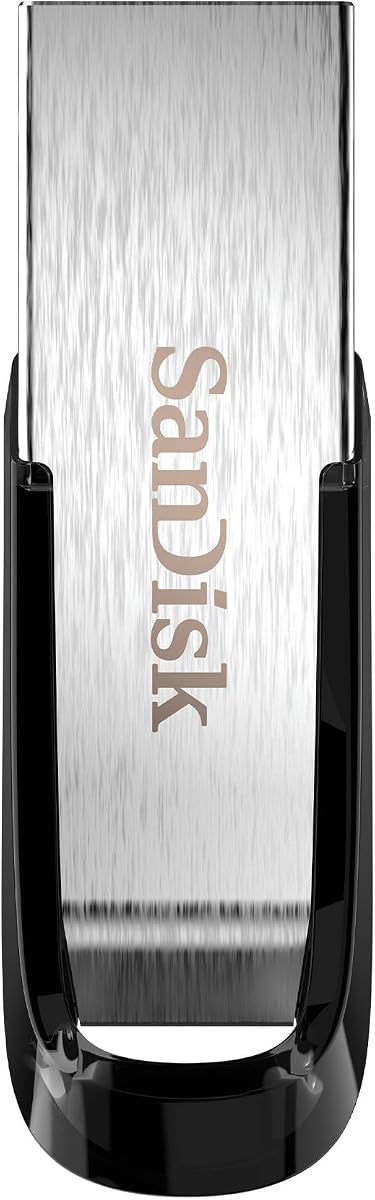
The SanDisk Ultra Flair offers high-speed performance and storage capacity that makes it an excellent candidate for creating custom bootable drives. Its 150MB/s read speeds ensure quick data transfers when building your own installation media.
We may earn a commission when you buy through this link, at no additional cost to you.
Built with a sleek metal casing, this drive is designed to withstand daily wear and tear. The included password protection software adds a layer of security for storing sensitive system files or personal documents.
While this drive is not pre-loaded with bootable software, its reliability and speed make it ideal for users who prefer to create their own Windows or Linux installation images using tools like Rufus.
If you need a high-quality storage medium for your own bootable projects, this model delivers the speed and durability required for consistent performance over time.
With speeds up to 150MB/s, transferring large OS ISO files to the drive happens quickly, saving time during the bootable media creation process.
You can protect private files with 128-bit AES encryption, making it safe to carry system images or personal data alongside boot tools.
We may earn a commission when you buy through this link, at no additional cost to you.
This 16-in-1 USB drive is a fantastic resource for Linux enthusiasts and anyone looking to test multiple distributions without installing them. It comes pre-loaded with popular versions like Ubuntu, Kali, and Mint for immediate use.
We may earn a commission when you buy through this link, at no additional cost to you.
Users can run Linux directly from the USB drive without affecting the hard drive, which is perfect for testing compatibility before committing to a full installation. The inclusion of Windows tools adds extra versatility for mixed environments.
To use this drive, you will need to access the BIOS and disable Secure Boot, which is a standard requirement for bootable media on many systems. The included video guides simplify this process for beginners.
For the price, you get an extensive library of operating systems and tools, making it the best budget choice for exploring Linux or recovering files on various PC setups.
You can boot into any of the sixteen distros to use the system immediately without installing anything, allowing safe testing on any laptop.
Video tutorials included on the drive walk you through the boot process and menu selection to ensure a smooth setup experience for new users.
We may earn a commission when you buy through this link, at no additional cost to you.
This compact 32GB drive offers a focused solution for Windows installation and recovery tasks. It is designed to help users reinstall Windows on various PC brands without worrying about TPM hardware requirements.
We may earn a commission when you buy through this link, at no additional cost to you.
The inclusion of network drivers ensures that once Windows is installed, you can connect to the internet to download updates or other software immediately. It also includes tools to help access hard drives for data backup.
While the storage capacity is smaller than the 64GB options, it is sufficient for the necessary installation files and tools. Note that it does not support automatic repair options, so it is best for clean installations.
If you need a smaller drive for occasional Windows recovery, this option provides the essential tools and network support required to get your PC up and running again.
Drivers for WiFi and LAN are built in so you do not need to find extra drivers online to connect your PC to the internet after install.
The drive allows access to hard drives to backup important data before reinstalling the operating system to prevent accidental data loss.
We may earn a commission when you buy through this link, at no additional cost to you.
This 8GB drive provides a minimalistic approach to Windows installation, focusing strictly on setup and recovery for systems that do not meet TPM requirements. It is a simple tool for specific OS needs.
We may earn a commission when you buy through this link, at no additional cost to you.
The seller provides clear warnings about hardware limitations, ensuring users know this tool cannot fix dead motherboards or failing hard drives. This transparency helps manage expectations for those troubleshooting PC problems.
Being a small capacity drive, it is perfect for carrying in a keychain or small pocket. The focus on Windows 11 without TPM makes it useful for upgrading older hardware to the latest OS version.
If you need a small, no-frills tool to reinstall Windows on compatible machines, this drive offers the essential functionality without extra features or software bloat.
Detailed warnings clarify that this drive only handles software installation, not hardware diagnosis, preventing frustration for users with hardware failures.
The drive is handmade and tested in Texas, supporting a family-owned business and ensuring quality control for every product sold.
We may earn a commission when you buy through this link, at no additional cost to you.
This 9-in-1 Linux drive is designed with newcomers to the open-source world in mind. It includes user-friendly distributions like Linux Mint and Ubuntu that are easy to navigate for former Windows users.
We may earn a commission when you buy through this link, at no additional cost to you.
A printed user guide helps you get started immediately by showing how to boot from the USB. The included software suites allow you to be productive right away with office and internet tools.
While it works with most PC brands, it is not intended for Apple Silicon or ARM devices. You will need to ensure Secure Boot is disabled to access the boot menu properly on your system.
For anyone looking to switch to Linux or learn the basics safely, this drive offers a gentle introduction with plenty of helpful tools and instructions included.
Each distribution comes with office suites and web browsers so you can use the system for daily tasks immediately after booting.
A physical guide is included to help you understand how to boot and install Linux without needing to search for online tutorials.
We may earn a commission when you buy through this link, at no additional cost to you.
This three-pack offers excellent value for anyone needing multiple drives for backups or custom bootable media. Each drive provides 64GB of space, which is sufficient for most installation files and backups.
We may earn a commission when you buy through this link, at no additional cost to you.
The drives are lightweight and come with a retractable button and lanyard loop for easy portability. You can use one for Windows, one for Linux, and keep one as a backup storage tool.
DataShield technology allows you to create a password protected safe for sensitive files, ensuring your data remains private when traveling. However, the drives are not pre-made bootable and require your own setup.
If you need multiple reliable storage units for various tasks, this pack gives you the flexibility to create different bootable drives for different projects or systems.
Having three drives allows you to dedicate one to Windows installation, one to Linux, and one to general data storage needs.
The included password protection helps you securely store bootable ISO files or other sensitive data when transporting the drives.
We may earn a commission when you buy through this link, at no additional cost to you.
This comprehensive drive includes a wide range of utilities like password reset and hardware testing in addition to standard installation tools. It supports Windows versions ranging from 7 to 11 without TPM requirements.
We may earn a commission when you buy through this link, at no additional cost to you.
The inclusion of network drivers ensures you can connect to the internet after installation, while hardware testing tools help diagnose component issues. Video tutorials assist you in learning how to use these advanced features.
All installation resources are official and scanned for safety, ensuring you avoid malware when rebuilding your system. However, you may need to disable Secure Boot to access these features on newer systems.
If you want a single drive that can reset passwords and install systems, this option provides more utility than a standard installation drive for a reasonable price.
You can reset local administrator passwords on your Windows system without needing third-party software or expensive services.
Built-in tools help you test hardware components to determine if the issue is software or hardware related before attempting a reinstall.
We may earn a commission when you buy through this link, at no additional cost to you.
This dual-connector drive offers modern versatility with Type-C and Type-A connectors in one unit, making it easy to use with both traditional PCs and modern tablets. The 256GB capacity is massive for storage needs.
We may earn a commission when you buy through this link, at no additional cost to you.
You can transfer files to phones or laptops directly without needing adapters, which is useful for backing up bootable ISOs or large data sets. The 360-degree swivel design keeps the ports protected and convenient.
Encryption software protects your files securely, and the drive comes with a three-year warranty for peace of mind. Like other general drives, it is not pre-made bootable but serves well as a transport medium.
If you need a large storage drive to carry multiple OS images and personal files across different devices, this dual-connector model is a practical choice.
With both USB-C and USB-A, you can plug this drive into modern MacBooks and older Windows PCs without needing extra adapters.
Advanced encryption ensures your bootable drive files and personal data are protected from unauthorized access during travel.
We may earn a commission when you buy through this link, at no additional cost to you.
The SAMSUNG BAR Plus delivers exceptional read speeds and durability, making it a robust choice for transporting large bootable images. Its 400MB/s read speed ensures quick transfers to your computer.
We may earn a commission when you buy through this link, at no additional cost to you.
The metal casing is designed to withstand water, shock, and temperature extremes, protecting your data from physical damage. This rugged construction makes it ideal for field work or travel where devices might be exposed to harsh conditions.
With a five-year warranty, Samsung backs this drive with long-term reliability. Although it does not come pre-bootable, its performance makes it an excellent medium for creating your own custom system drives.
If you prioritize speed and durability for your storage needs, this drive offers premium build quality that stands out among standard plastic USB options.
Read speeds up to 400MB/s allow you to copy large operating system files to the drive in minutes rather than hours.
Waterproof and shock-proof capabilities ensure your bootable files remain safe even if the drive is exposed to water or drops.
We may earn a commission when you buy through this link, at no additional cost to you.
Selecting the right bootable flash drive depends on your specific needs, whether you prioritize OS support, capacity, or physical durability.
Ensure the drive supports the OS you need to install such as Windows 11 or a specific Linux distribution. Some drives come pre-made while others are blank.
Choose a drive explicitly listed for your target OS to avoid compatibility issues during boot.
Capacity determines how much data you can store on the drive. 32GB is often enough for basic Windows installs while 64GB allows for more tools.
Larger capacities like 128GB are better if you plan to store multiple ISOs or backup large amounts of data.
Look for USB 3.0 or USB 3.2 interfaces for faster data transfer speeds. This reduces the time needed to copy files or install systems.
Faster speeds are especially important if you frequently create bootable drives or move large video files.
Many modern Windows installations require a TPM chip. Some drives offer tools to bypass this requirement for older hardware upgrades.
Check if the drive mentions No TPM support if you are upgrading an older machine to a newer OS.
Pre-made drives come with software already installed saving you time and effort. Custom drives require you to download ISOs and write them yourself.
Choose pre-made for convenience and custom for flexibility to select specific software versions.
A durable casing protects your drive from drops and everyday wear. Metal cases often offer better protection than plastic ones.
Waterproof and shock-proof features are valuable if you use the drive in environments where it might be exposed to the elements.
Ensure the drive supports both UEFI and Legacy BIOS modes to work with a wide range of computers. Some systems require one mode over the other.
Dual support ensures the drive will boot correctly on both older and newer hardware.
Some drives include additional utilities like password reset or data recovery tools which add significant value. These can save you time during troubleshooting.
Check the product description for included software that matches your maintenance needs before buying.
To use your bootable drive insert it into a USB port and restart your computer. Access the BIOS or boot menu usually by pressing a key like F12 or Del during startup to select the USB drive as the boot device.
Ensure you back up any important data before installing an operating system as the process may overwrite existing files. Follow the on-screen prompts to complete installation or run diagnostic tools.
To prolong the life of your drive store it in a cool dry place away from moisture and strong magnetic fields. Always safely eject the drive from your computer before removing it to prevent data corruption.
Most bootable drives do not include a Windows product key. You will need your own license to activate the operating system after installation. Some drives allow you to install the software but activation requires a separate key.
Most bootable Windows drives are designed for PC hardware and may not work on Apple Silicon Macs. Traditional Intel Macs might work if they support booting from USB. Always check specific compatibility notes before purchasing.
If you create your own bootable drive you usually need to format the USB to FAT32 or NTFS before writing the image. Pre-made drives come ready to use without any formatting steps.
If you use the drive to reinstall Windows your existing system files may be deleted. It is critical to back up your personal data to an external hard drive before starting the process.
If your computer does not boot from the USB you may need to disable Secure Boot in BIOS settings. Additionally ensure the USB port is working and the drive is inserted correctly before restarting.
Reputable drives are usually scanned for malware before shipping but you should still run your own antivirus scan after purchase. Downloading OS images from official sources also helps ensure the files are safe to use.
We have reviewed ten top-rated bootable flash drives that cater to different needs from Windows installation to Linux exploration. The 64GB Bootable USB Drive stands out for its versatility and support for modern OS requirements.
When choosing a drive consider factors like capacity speed and whether you need pre-made tools. Budget options offer great value while premium drives provide faster speeds and better durability for heavy use.
Prices and availability change frequently so be sure to check the current listings before you buy. With the right bootable drive you can maintain your PC and solve installation issues with confidence.