
BenQ MA270UP
4.3Editor score
Mac Color Match Tuning
90W USB-C Power Delivery
Mac Keyboard Volume Control
Choosing the right display for your MacBook Pro can transform your workflow and creativity. A compatible monitor enhances productivity with sharp visuals, accurate colors, and seamless connectivity through USB-C or Thunderbolt.
We evaluated ten top-rated monitors based on performance, design, and Mac compatibility. Our analysis focuses on resolution, color accuracy, refresh rates, and connectivity options to help you find the perfect match.
Each pick highlights specific strengths and ideal use cases for different users. Keep in mind that prices and availability may change over time, so verify current details before making your final purchase decision.
4.3Editor score
5.0Editor score

4.4Editor score
As an Amazon Associate we earn from qualifying purchases.
This side-by-side comparison highlights the key specifications of each monitor to help you quickly identify the right fit for your needs and budget.



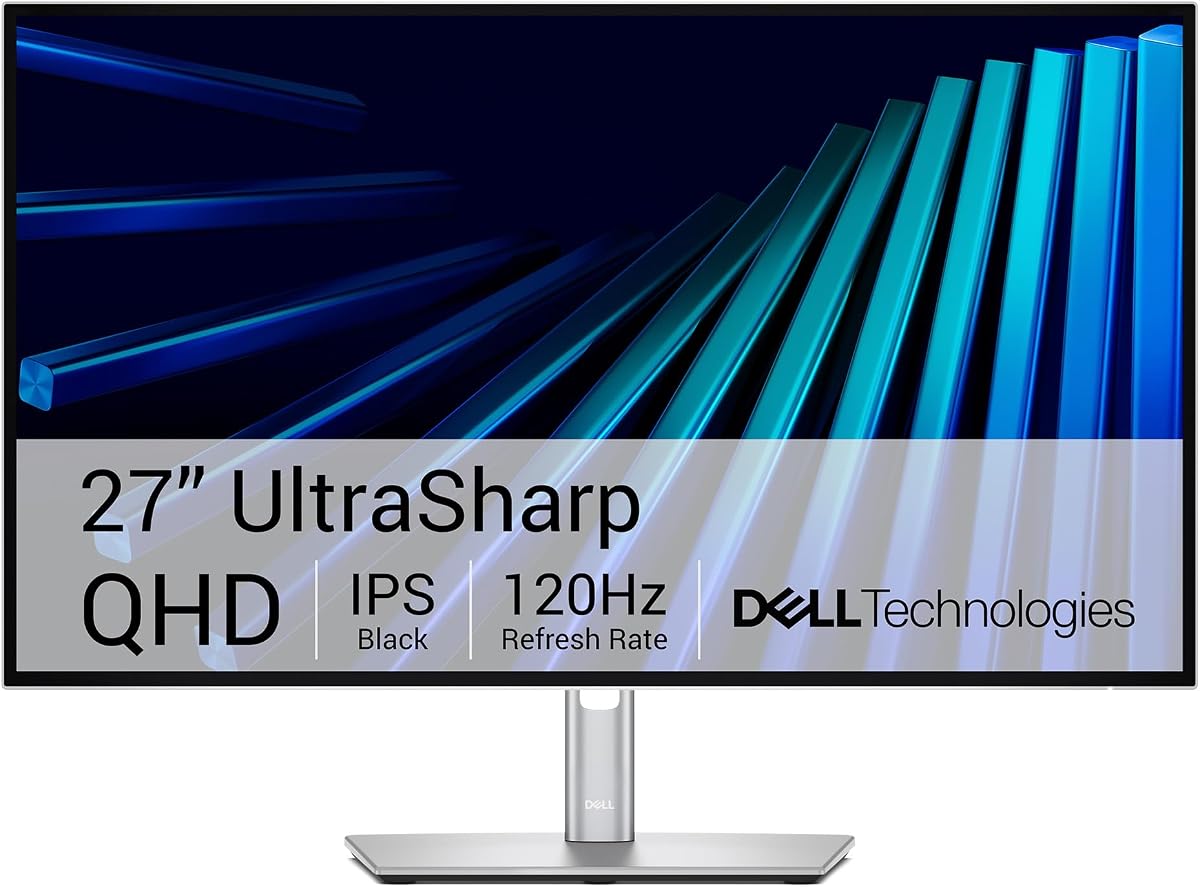
The Dell UltraSharp 27 Thunderbolt Hub Monitor stands out as the top choice for MacBook Pro users who need professional-grade performance. With a perfect 5.0 rating, this monitor delivers flawless visuals and deep integration with macOS systems.
We may earn a commission when you buy through this link, at no additional cost to you.
Its factory-calibrated color accuracy with 98% P3 coverage ensures your creative work looks exactly as intended. The built-in Thunderbolt hub simplifies your desk by providing multiple connection options through a single cable.
While the price is higher than standard monitors, the value comes from its premium features like the KVM switch which lets you control two devices with one keyboard and mouse.
This monitor is ideal for designers, developers, and executives who demand top-tier performance. If you want a seamless Mac experience, this is the ultimate upgrade.
With 98% Display P3 coverage and factory calibration, colors are true to life right out of the box.
Connect your Mac and other peripherals through a single Thunderbolt cable for a clean workspace.
We may earn a commission when you buy through this link, at no additional cost to you.
The BenQ MA270UP is engineered specifically for Mac users, offering unique features like Mac Color Match that calibrates the display to match your laptop's screen. It holds a strong 4.3 rating among professional users.
We may earn a commission when you buy through this link, at no additional cost to you.
Its dual USB-C ports allow you to connect multiple devices while providing 90W power delivery to charge your MacBook at full speed. The integrated volume control on your keyboard makes adjusting audio effortless during calls or media consumption.
Although it carries a premium price, the dedicated Mac optimizations make it worth the investment for those who value ecosystem harmony. It ensures your external display feels like a natural extension of your laptop.
This monitor is perfect for professionals who switch between MacBook Air and Pro regularly. If color consistency across devices is critical, this BenQ model is a standout choice.
Exclusive tuning ensures vibrant P3 colors match your MacBook display for a consistent viewing experience.
Connect your MacBook and iPad simultaneously with dual USB-C ports delivering up to 90W charging.
We may earn a commission when you buy through this link, at no additional cost to you.
The LG 27US500-W offers an impressive 4K UHD experience at a budget-friendly price point. With a 4.4 rating, it provides sharp visuals and decent color performance for everyday tasks.
We may earn a commission when you buy through this link, at no additional cost to you.
Its IPS panel delivers wide viewing angles and vibrant colors thanks to 90% P3 gamut expression. The borderless design adds a modern touch that fits well in home office or living room setups.
While it lacks advanced connectivity like USB-C charging, it remains a strong option for those who prioritize screen size and resolution over extra features. The HDR10 support enhances movie and video viewing significantly.
This monitor is ideal for students and casual users looking to expand their workspace without breaking the bank. It balances quality and cost effectively for general use.
The borderless design and IPS technology create a seamless and immersive viewing experience.
Up to 90% DCI-P3 color gamut expression brings vivid and lifelike colors to your content.
We may earn a commission when you buy through this link, at no additional cost to you.
The Dell 27 Monitor S2725QC combines a 4K display with a 120Hz refresh rate, making it versatile for both work and play. It has earned a 4.4 rating for its smooth performance and solid connectivity.
We may earn a commission when you buy through this link, at no additional cost to you.
With 99% sRGB coverage, colors appear accurate for most productivity tasks. The USB-C connection supports up to 65W power delivery, reducing cable clutter and keeping your MacBook charged.
ComfortView Plus technology reduces blue light emissions for long working hours without sacrificing image quality. This feature helps maintain eye comfort during extended sessions.
This monitor is great for hybrid users who need a screen for productivity and casual gaming. The 120Hz refresh rate ensures everything feels responsive and fluid.
The 120Hz refresh rate ensures tear-free and smooth visuals for work and entertainment.
Connect your MacBook with a single USB-C cable for power and video transmission.
We may earn a commission when you buy through this link, at no additional cost to you.
The LG 27UP850K-W is a highly rated monitor with a 4.5 score, offering a balanced mix of performance and features. It supports USB-C with 90W power delivery which is ideal for charging high-performance MacBooks.
We may earn a commission when you buy through this link, at no additional cost to you.
With HDR 400 support and 95% P3 color gamut, it provides excellent depth and vibrant colors. The built-in stereo speakers enhance media consumption without needing external devices.
This monitor includes the Switch App which allows you to split the screen into multiple sections for multitasking. It also supports webOS streaming, adding convenience for users who want smart features.
It is perfect for creative professionals who need reliable performance and robust connectivity. The combination of color accuracy and power delivery makes it a strong contender.
Up to 90W USB-C power delivery ensures your MacBook stays charged while connected.
The Switch App lets you split your screen into six sections for efficient workflow.
We may earn a commission when you buy through this link, at no additional cost to you.
The Philips 241V8LB is an affordable option that still delivers solid performance for everyday tasks. With a 4.6 rating, it is highly praised for its value and reliable display quality.
We may earn a commission when you buy through this link, at no additional cost to you.
Its 100Hz refresh rate ensures smooth scrolling and responsive visuals for general use. The VA panel offers good contrast and viewing angles which is useful for different setups.
EasyRead mode reduces eye strain by providing a paper-like experience for reading documents. This makes it suitable for office work or long reading sessions.
This monitor is best for users on a strict budget who still want a decent refresh rate. It serves as a reliable secondary display or basic workhorse.
An entry-level choice that provides strong value for everyday users.
EasyRead mode mimics paper to reduce strain during long document sessions.
We may earn a commission when you buy through this link, at no additional cost to you.
The Dell 24 Plus Monitor stands out with a 4.7 rating for its high refresh rate and responsiveness. It features a 144Hz refresh rate and 1ms response time which is excellent for gaming and fast-paced tasks.
We may earn a commission when you buy through this link, at no additional cost to you.
The Ash White finish adds a stylish touch to any desk setup. Integrated speakers provide audio convenience for video calls or media consumption.
The ergonomic stand supports height tilt pivot and swivel adjustments to ensure comfortable viewing angles. This flexibility helps reduce strain during extended use.
This monitor is ideal for casual gamers or users who prefer a clean aesthetic. It delivers smooth performance at an accessible price point.
144Hz refresh rate and 1ms response time provide a tear-free experience.
The Ash White finish complements modern desk setups beautifully.
We may earn a commission when you buy through this link, at no additional cost to you.
The BenQ PD2706QN is a Mac-Ready monitor with factory calibration for precise color accuracy. Its 4.5 rating reflects its strong performance for design and video editing tasks.
We may earn a commission when you buy through this link, at no additional cost to you.
With 95% P3 and 100% sRGB coverage, it covers most professional color requirements. The USB-C port delivers 90W power ensuring your MacBook stays powered during work.
The Nano matte panel reduces glare and maintains contrast in bright environments. Daisy chaining allows you to connect multiple monitors easily without additional adapters.
This monitor is designed for professionals who require consistent and accurate color reproduction. It combines practicality with advanced features for creative workflows.
Delta E ≤ 2 ensures consistent colors across different displays.
Daisy chain support allows multiple displays to connect via a single cable.
We may earn a commission when you buy through this link, at no additional cost to you.
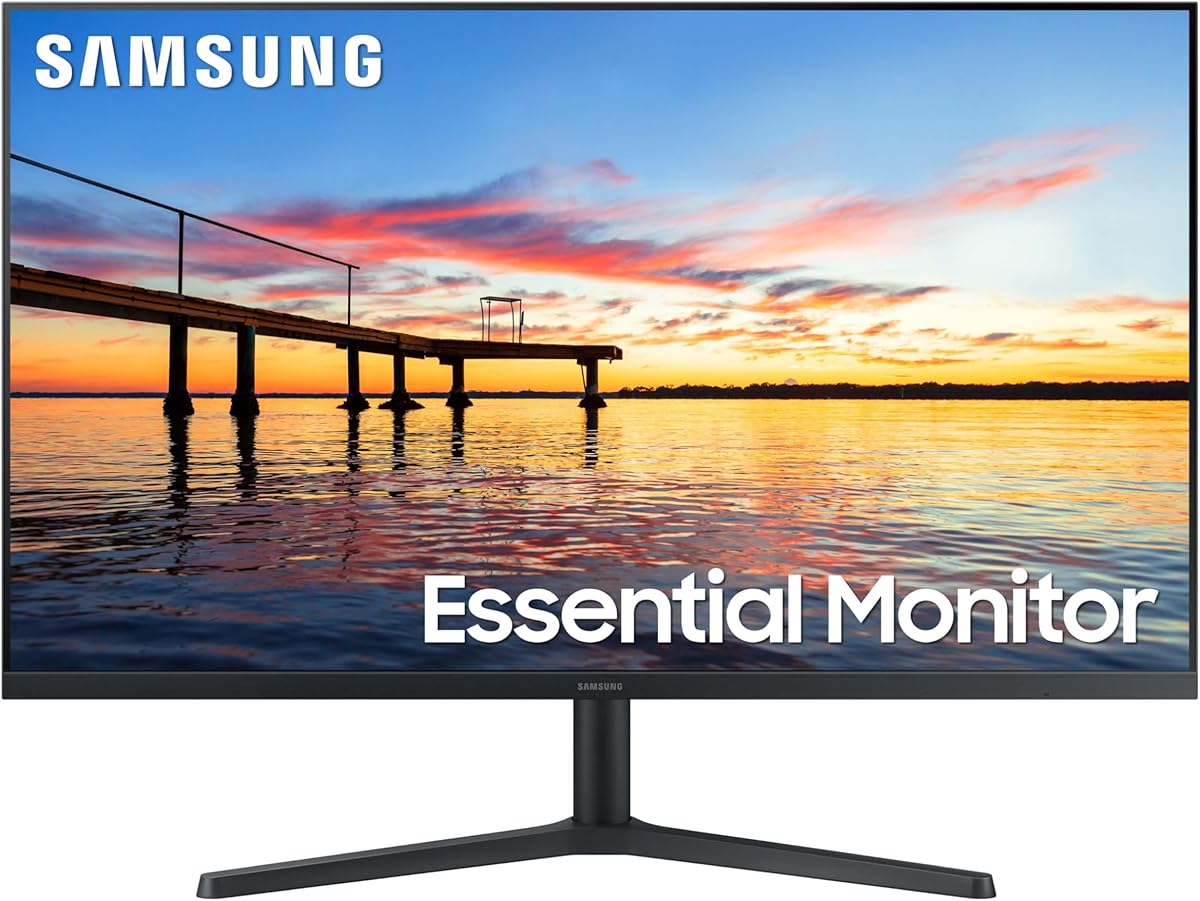
The Samsung 32 Flat Monitor provides a large viewing area for users who prioritize screen real estate. With a 4.5 rating, it is popular for its spacious display and modern design.
We may earn a commission when you buy through this link, at no additional cost to you.
Its borderless screen offers a seamless look in multi-monitor setups. AMD FreeSync ensures smooth visuals during gaming by syncing the refresh rate with the graphics card.
The 75Hz refresh rate is sufficient for general productivity and casual entertainment. It offers a comfortable viewing experience for long work sessions.
This monitor is ideal for users who want a larger screen without spending too much. It works well for multitasking or media consumption.
The 32-inch flat design offers a generous workspace for multitasking.
A borderless design allows for a clean and modern look.
We may earn a commission when you buy through this link, at no additional cost to you.
The LG 27U631A-B offers a solid QHD display with a 100Hz refresh rate. It has earned a 4.3 rating for its balanced performance in everyday use cases.
We may earn a commission when you buy through this link, at no additional cost to you.
With HDR10 support, it delivers better contrast and color depth for videos. The USB Type-C port with 15W power delivery is useful for charging accessories even if not enough for a MacBook.
The slim stand maximizes desk space while maintaining stability. The borderless design adds a modern feel to any office setup.
This monitor is suitable for users who want sharp text and smooth scrolling at a reasonable price. It is a practical choice for daily computing tasks.
100Hz refresh rate ensures fluid motion and reduced screen tearing.
A sleek stand and borderless design optimize desk space.
We may earn a commission when you buy through this link, at no additional cost to you.
Selecting the right monitor involves understanding your specific needs regarding resolution, connectivity, and color performance.
Higher resolutions like 4K provide sharper text and more screen real estate for multitasking. For creative work, look for panels with high color gamut coverage like P3 or sRGB to ensure accurate colors.
Prioritize 4K for design or 1440p for general use to balance clarity with performance.
USB-C with power delivery is essential for a clean setup as it allows video and charging through one cable. Thunderbolt support enables faster data transfer and higher resolutions if your MacBook supports it.
Ensure your chosen monitor has at least one USB-C port with adequate wattage for your device.
While 60Hz is standard, higher refresh rates like 120Hz offer smoother visuals and scrolling which is great for both work and gaming. Response times of 5ms or lower prevent motion blur during fast content.
Choose higher refresh rates for a smoother and more responsive experience.
Professionals need factory-calibrated monitors with low Delta E values to ensure colors match print or other screens. Look for wide gamut coverage like 90% P3 for vibrant and accurate images.
Factory calibration saves time and ensures consistent colors for professional work.
An adjustable stand with height tilt pivot and swivel options helps you find a comfortable viewing position. Proper ergonomics reduce strain during long work hours.
Adjustable stands are crucial for maintaining good posture and eye comfort.
IPS panels offer the best viewing angles and color consistency making them ideal for professional use. VA panels provide higher contrast which is better for watching movies or viewing dark content.
IPS panels are generally preferred for Mac compatibility and color accuracy.
Some monitors offer specific software or hardware features optimized for macOS like brightness control or color matching. These features can significantly improve the user experience.
Check for dedicated Mac software or hardware features to enhance usability.
Entry-level monitors can be very affordable but may lack advanced features like USB-C charging. High-end models offer better build quality and professional features but cost more.
Determine your budget and prioritize features that matter most to your workflow.
Connect your monitor using a high-quality USB-C or Thunderbolt cable to ensure stable video and power delivery. Adjust the stand height so your eyes are at the top of the screen to reduce neck strain.
Calibrate your display settings using macOS System Settings to match brightness and color temperature with your laptop. Use night shift mode at night to reduce blue light and protect your eyes.
Clean the screen with a soft microfiber cloth and avoid using harsh chemicals. Dust the vents periodically to prevent overheating and extend the lifespan of your monitor.
While not strictly necessary, a USB-C monitor is highly recommended because it allows you to connect video and charge your laptop with a single cable. This simplifies your desk setup and reduces the need for adapters.
4K resolution is often considered the best fit because it matches the Retina display scaling and provides sharp text. 1440p is also a strong option for general productivity if you want to save cost.
Yes you can connect multiple monitors depending on your MacBook model and ports. You may need a dock or a monitor with daisy chaining capabilities to connect more than two displays effectively.
Higher refresh rates like 120Hz make scrolling and cursor movement smoother which reduces eye strain and improves responsiveness. While 60Hz is sufficient, higher rates provide a noticeable quality of life upgrade.
Thunderbolt monitors are worth the investment if you need to connect multiple high-speed peripherals or external drives. They also allow for higher resolution and better power delivery compared to standard USB-C.
Check the color gamut settings on your monitor to ensure it matches your content profile. Adjusting macOS display settings and using calibration tools can also help fix inaccurate colors.
The Dell UltraSharp 27 Thunderbolt Hub Monitor and BenQ MA270UP stand out as top choices for users seeking premium performance and Mac integration. These monitors deliver the best overall experience for professionals.
Budget-conscious users can find excellent value with options like the LG 27US500-W which offers 4K resolution at an accessible price. Prioritize features like resolution and connectivity based on your workflow needs.
Remember that technology evolves quickly so always check current prices and specifications before buying. This guide provides a solid starting point to help you find the perfect screen for your MacBook Pro.