
WAVLINK USB 3.0/USB C to HDMI Universal Video Adapter
4.4Editor score
Supports up to six monitors total
Includes 2.1CH audio input output
Works across Windows macOS ChromeOS
Compare the top 10 Displaylink adapters for Mac and Windows. See real ratings, specs, and expert picks to expand your workspace today.
Finding the right Displaylink adapter can transform your single-screen laptop into a powerful dual-monitor workstation. These devices use specialized technology to bypass native port limitations on modern Macs and PCs.
We compared ten top-rated adapters based on video output quality, compatibility with operating systems, and additional connectivity options like charging and USB ports. Our list covers diverse needs from budget home offices to professional setups.
Each pick highlights key strengths and potential trade-offs to help you choose wisely. Keep in mind that product prices and availability change frequently, so verify details before purchasing your ideal adapter.
4.4Editor score

4.8Editor score

4.3Editor score
This side-by-side comparison highlights the core capabilities of each adapter to help you quickly identify the best fit for your specific laptop and workflow requirements.



This WAVLINK adapter offers exceptional value for users needing multiple displays without breaking the bank. It holds a solid 4.4 rating for its ability to connect up to six monitors on supported PCs.
We may earn a commission when you buy through this link, at no additional cost to you.
The adapter supports resolutions up to 1440p and includes audio ports for microphone and earphone connections. It works well across Windows macOS and ChromeOS systems with basic driver setup.
While it does not support 4K at 60Hz like premium models, it handles standard office tasks and multitasking smoothly. The trade-off is acceptable for budget conscious users needing basic dual screen expansion.
Buy this if you need a reliable entry-level adapter for standard workflows. It is a great choice for students or home offices requiring affordable multi-monitor capability without high-end specs.
Get multiple displays working without spending hundreds on expensive docking stations.
Built-in microphone and earphone jacks simplify calls and media consumption.
We may earn a commission when you buy through this link, at no additional cost to you.
This WAVLINK option delivers impressive 4K 60Hz performance at a competitive price point. It currently holds a 4.6 rating for reliability and security features in modern work environments.
We may earn a commission when you buy through this link, at no additional cost to you.
The encrypted DL-chip technology ensures enterprise-level data protection during daily operations. It connects to USB-A USB-C and Thunderbolt ports seamlessly for versatile laptop compatibility.
Drivers must be installed manually but are straightforward to setup. Avoid using this for HDCP protected streaming services since DisplayLink does not support those content types.
Choose this for secure office setups needing high resolution dual screens. It is perfect for analysts comparing data or developers coding across multiple windows efficiently.
Encrypted DL-chip technology protects sensitive corporate data during transmission.
Supports Thunderbolt 3/4 USB4 and legacy USB ports for flexible setups.
We may earn a commission when you buy through this link, at no additional cost to you.
Leading with the highest rating this ACASIS adapter is a top choice for MacBook users seeking dual displays. Its 4.8 score reflects exceptional stability and build quality for professional workflows.
We may earn a commission when you buy through this link, at no additional cost to you.
It bypasses macOS screen restrictions delivering ultra-stable video signals without flicker or blackout. The 100W PD port keeps your laptop powered while driving two external monitors simultaneously.
Note that it uses DisplayPort so you may need HDMI adapters if your monitors lack DP ports. Installation requires downloading the DisplayLink driver before first use as specified.
Invest in this for reliable premium performance on Macs. Power users designers and conference rooms will appreciate the seamless connectivity and durable aluminum construction.
Connect two 4K monitors without sacrificing laptop battery life or portability.
Aluminum alloy housing ensures optimal heat dissipation and scratch resistance.
We may earn a commission when you buy through this link, at no additional cost to you.
This WAVLINK splitter provides seamless dual monitor capabilities for both Mac and Windows users. It holds a 4.4 rating for delivering crystal clear 4K at 60Hz visuals.
We may earn a commission when you buy through this link, at no additional cost to you.
The hybrid cable allows easy connection to USB-C USB-A and Thunderbolt ports. It supports up to M5 Macs and includes a solid warranty with technical support for registered members.
It is important to note that Linux and Unix systems are not supported. You will need to install the DisplayLink driver but it works smoothly on Windows and macOS.
Pick this for reliable home office productivity. The flexible cable makes it easy to switch between devices or connect to older laptops without issues.
One cable connects to both USB-C and USB-A ports for maximum flexibility.
Life-long technical support ensures you never face unresolved hardware issues.
We may earn a commission when you buy through this link, at no additional cost to you.
Plugable offers versatile connectivity with options to use USB-C or USB-A ports directly. This adapter earns a 4.5 rating for its reliability in hybrid office environments.
We may earn a commission when you buy through this link, at no additional cost to you.
The built-in USB-A adapter stays attached making it easy to switch between computers. It drives two 4K monitors effectively and handles spreadsheets coding and web browsing well.
ChromeOS users get a plug-and-play experience without driver installation. However macOS is not recommended due to compatibility limitations and potential driver issues on Mac systems.
Select this for business use needing consistent performance. It is an excellent choice for hot-desk workspaces or IT departments deploying standard office setups.
Built-in USB-A adapter simplifies switching between laptops without losing accessories.
ChromeOS 100+ systems support DisplayLink automatically without extra steps.
We may earn a commission when you buy through this link, at no additional cost to you.
This ACASIS adapter transforms your laptop into a productivity powerhouse with dual 4K displays. It has a solid 4.3 rating for performance and useful additional ports for peripherals.
We may earn a commission when you buy through this link, at no additional cost to you.
The 100W PD port keeps your MacBook or Dell laptop powered while working. It includes three USB-A ports for keyboard mouse and flash drives making it a practical hub.
Keep in mind that gaming and HDCP content are not supported due to DisplayLink limitations. Ensure you install the necessary driver before plugging in the device.
Choose this for efficient office setups needing charging and connectivity. It is ideal for multitasking and coding without draining your battery during long work sessions.
Keep your notebook fully powered while driving two high resolution monitors.
Connect multiple USB devices effortlessly without needing extra hubs.
We may earn a commission when you buy through this link, at no additional cost to you.
Plugable delivers a recognized quality option with two extended 4K screens from one port. It maintains a 4.3 rating and is often cited for reliability in professional deployments.
We may earn a commission when you buy through this link, at no additional cost to you.
Mac users must install the DisplayLink Manager and set permissions but Windows works plug-and-play. It is designed to meet deployment demands of IT departments with North American expert support.
This adapter does not support streaming services like Netflix due to HDCP restrictions. However productivity apps and development tools work fully without any issues or performance drops.
Pick this for reliable business or home office use. It is a strong choice for anyone needing guaranteed support and stable dual monitor connectivity on Macs.
Get help from North American connectivity experts anytime you need it.
Designed specifically to bypass single-screen limitations on modern Apple devices.
We may earn a commission when you buy through this link, at no additional cost to you.
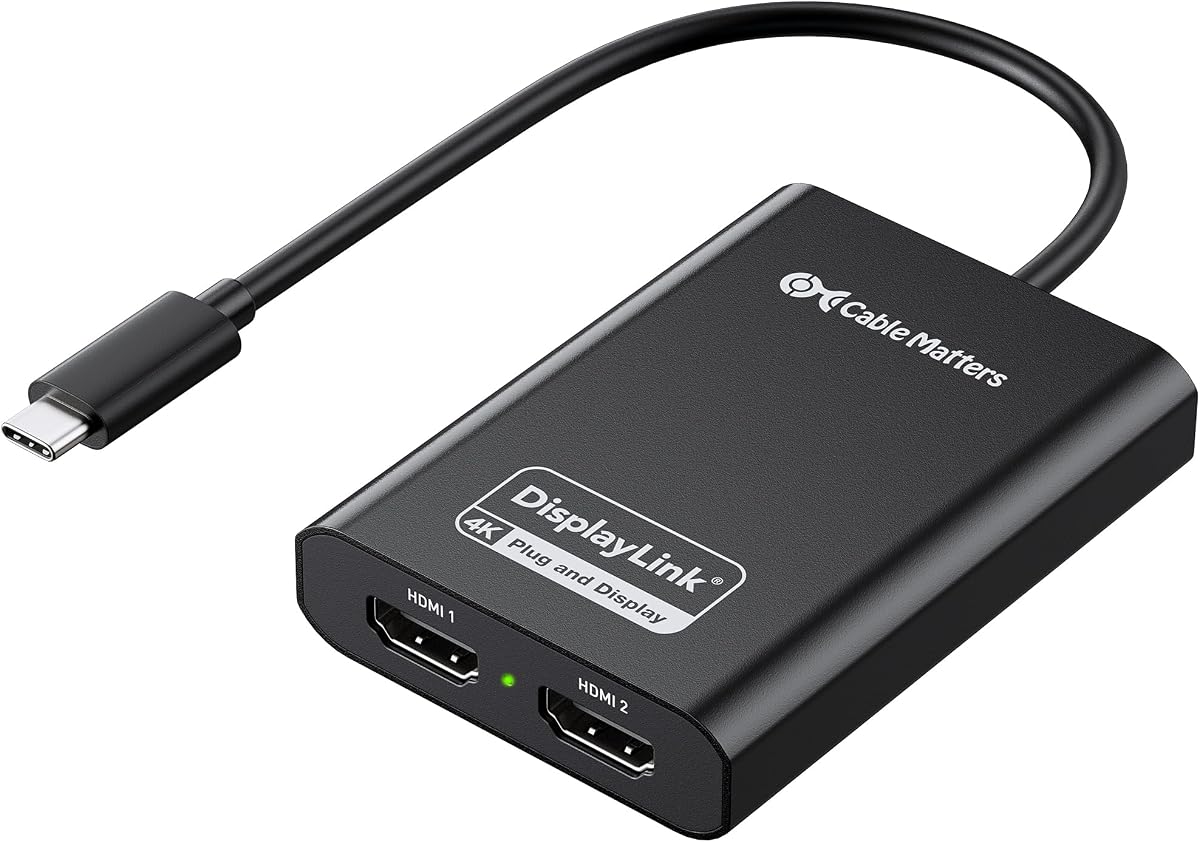
This Cable Matters adapter is officially certified to ensure consistent performance with DisplayLink technology. It holds a 4.0 rating for durability and solid connectivity options for various laptops.
We may earn a commission when you buy through this link, at no additional cost to you.
The premium aluminum housing helps dissipate heat to maintain stable performance over time. It supports dual 4K 60Hz displays and is ideal for creative workflows or productivity tasks.
Performance depends on CPU and bandwidth so use newer systems for best results. The housing may feel warm during operation but this is normal for metal enclosures.
Buy this for reliable daily use on Windows Mac or ChromeOS. It is a good fit for users needing a certified solution for streaming setups or creative work.
Official DisplayLink certification ensures reliable and consistent display output.
Aluminum alloy enclosure protects the adapter and manages heat effectively.
We may earn a commission when you buy through this link, at no additional cost to you.
Sonnet is known for reliability and this adapter delivers dual 4K displays efficiently. It holds a 4.4 rating and supports higher refresh rates up to 144Hz for lower resolutions.
We may earn a commission when you buy through this link, at no additional cost to you.
It includes an adapter to switch between USB-A and USB-C ports easily. This model works with M1 Pro Max and Ultra chips offering broad Mac support for various models.
While it lacks extra USB ports for other peripherals it focuses purely on display performance. It supports audio output making it suitable for watching videos or listening to media.
Choose this for high refresh rate needs on Macs. Professionals needing 144Hz on secondary screens will appreciate its robust performance and audio features.
Get smoother visuals with support up to 144Hz on 1080p displays.
Works with powerful Mac chips including M1 Pro Max and Ultra models.
We may earn a commission when you buy through this link, at no additional cost to you.
This StarTech mini dock offers unique value with an integrated Ethernet port for wired internet. It holds a 4.4 rating for portability and practical office features for remote workers.
We may earn a commission when you buy through this link, at no additional cost to you.
The included Ethernet cable supports 30cm reach reducing strain on your laptop ports. It features automatic driver setup and is bus-powered meaning no external power needed for use.
Note that it uses DisplayPort so HDMI adapters are needed for most monitors. However the compact design fits easily into small workspaces and laptop bags for travel.
Select this for office setups needing internet and video. It is an excellent choice for Surface Pros or ultrabooks lacking wired network ports.
Add wired internet connectivity alongside your dual monitors easily.
Compact form factor suits small desks and mobile remote workers well.
We may earn a commission when you buy through this link, at no additional cost to you.
Choosing the right Displaylink adapter depends on your specific laptop model operating system and required video resolution. Understanding these factors ensures you select a device that meets your productivity needs.
Check whether the adapter supports your specific OS version including Windows macOS or ChromeOS. Some adapters work better on Windows while others are optimized for Apple Silicon Macs.
Ensure you are willing to install drivers since most adapters require manual setup on Mac systems.
Determine if the adapter provides HDMI or DisplayPort outputs. HDMI is more common for monitors while DisplayPort may need an adapter for standard screens.
Verify your monitor inputs match the adapter outputs or prepare the necessary cables for connection.
Look for 4K at 60Hz support if you need high quality visuals for work or media. Lower resolutions may be acceptable for basic office use.
Choose 60Hz for smooth scrolling and avoid 30Hz to prevent eye strain during long sessions.
Select adapters with 100W power delivery if you want to charge your laptop while using the adapter. This reduces cable clutter and keeps your device powered.
Ensure the PD rating matches your laptop's requirements to avoid slow charging issues.
Check if you need extra USB-A ports for peripherals like keyboards or flash drives. Some models offer multi-port hubs beyond just video output.
Consider if USB-C or USB-A input is available to match your laptop's ports directly.
Reputable brands like Plugable or StarTech often provide better technical support and longer warranties. Lifetime support can be valuable for enterprise environments.
Read warranty terms carefully to ensure coverage for potential hardware or software issues.
Be aware that DisplayLink technology does not support HDCP protected streaming services like Netflix. This is a technical limitation of the protocol used by these adapters.
For streaming media you may need a standard HDMI adapter instead of a DisplayLink model.
Choose a compact aluminum design if you travel frequently or work from different locations. Lightweight docks are easier to pack and carry daily.
Consider cable length and form factor to ensure it fits comfortably in your setup without clutter.
Install the latest DisplayLink driver from the official website before connecting the adapter to ensure compatibility. This step is critical for Mac users and improves overall stability.
Connect the adapter to a USB 3.0 or Thunderbolt port for best performance. Avoid using older USB 2.0 ports which may not provide enough bandwidth.
Store the adapter in a cool dry place when not in use. Avoid bending cables sharply to maintain durability and prevent internal wire damage over time.
Most modern MacBooks only support one external display natively due to hardware limitations. DisplayLink adapters use software compression to bypass these limits and enable multiple screens.
No DisplayLink does not support HDCP protected content so streaming apps like Netflix often show black screens. These adapters are designed for productivity not entertainment.
Download the driver from the official DisplayLink website. Run the installer and allow the required permissions in your operating system settings for the adapter to work.
DisplayLink adapters are not recommended for gaming due to slight latency. They work best for office tasks spreadsheets coding or static content.
HDMI adapters connect directly to standard monitors while DisplayPort adapters need cables. Check your monitor inputs to know which type you need.
Yes many adapters support two monitors simultaneously. Some models allow connecting up to six displays depending on the specific product features.
Our top picks range from budget-friendly options to premium models with enhanced features like power delivery and security encryption. ACASIS and Plugable stand out for reliability and macOS support.
Prioritize resolution compatibility and connection options that match your specific workflow. Avoid adapters that do not support your operating system or required video resolution.
Prices and availability change frequently so check current listings on Amazon before buying. Verify your laptop requirements to ensure you get the right adapter for your needs.